Shopify Rollouts: How to Schedule Launches, Run Events and A/B Test Your Store

Summarize this article with AI


Shopify Rollouts lets you schedule theme, checkout, catalog and discount changes, run time-boxed events and A/B test them natively. How it works, limits and how to read results.
Shopify Rollouts is the native tool in your Shopify admin for scheduling store changes, running limited-time events that switch back on their own, and A/B testing a new theme or checkout against the current one. No app, no code, no 2 a.m. publish button.
It launched in March 2026 and has grown fast since: whole-theme tests and checkout in June, a redesigned setup in September, discounts in October. This guide covers everything that works today, what it still can't do, and how to read an experiment without fooling yourself.
Trafik Plus is a Shopify agency. We develop Shopify themes, including our own theme Pops, and we set up launches and tests for merchants. Everything below was checked in a real Shopify admin in November 2026 and against Shopify's Rollouts documentation(opens in a new tab).
The short answer
- What it is: a tool under Markets > Rollouts that bundles theme, checkout, catalog and discount changes into one planned release.
- Three types: Launch (publish on a date, permanent), Event (runs between two dates, then rolls back), Experiment (A/B test, control vs treatment).
- Plans: Launches and Events from Basic. Experiments need Grow or higher.
- Big wins: no flicker (the split happens on Shopify's servers), no extra app, and one place to schedule a whole sale.
- Big limits: no Liquid template changes, no vintage themes, no customer-segment targeting, no statistical significance in the report.
What is Shopify Rollouts?
Rollouts groups changes to your online store into one release that you can schedule, limit to part of your traffic, or test. Before it existed, you had to publish a theme by hand at the right minute, activate discounts one by one, and use a third-party app to split traffic.
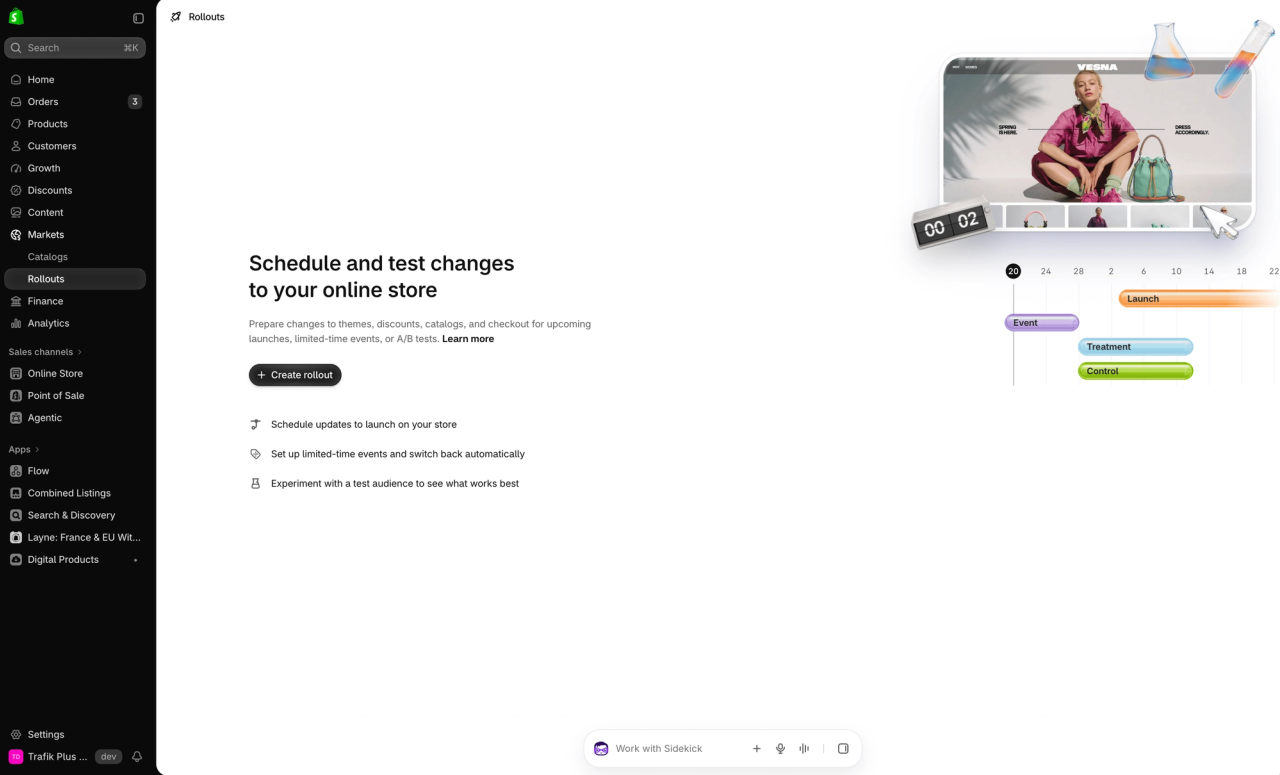
The landing page sums up the three jobs: schedule updates, run limited-time events that switch back, and experiment with a test audience. Each job is a rollout type.
The three rollout types: Launch, Event and Experiment
Type | What happens | End date | Typical use |
|---|---|---|---|
Launch | Changes are permanently merged into the store on the start date | Optional | New theme, redesigned product page, new checkout branding |
Event | Changes show between two dates, then roll back automatically | Required | Black Friday, flash sale, holiday theme |
Experiment | Visitors are split between control (current store) and treatment (your changes) | Set 90 days out by default | A/B test a new theme or a discount |
You can switch type while the rollout is a draft. The wording under the calendar tells you which one you picked: "Changes publish" for a Launch, "Event runs from" for an Event, "Experiment runs from" for an Experiment. Dates use your store's timezone, so check it under Settings > General before you plan a midnight launch.
What can you change in a rollout?
A single rollout can hold one of each of the following (full list in Shopify's help(opens in a new tab)):
Change | What you can do | Limits |
|---|---|---|
Theme | Edit the live theme, or replace it with another theme | One theme change per rollout. "Edit theme" needs the rollout saved first and can't change content. "Replace" supports content changes |
Checkout and accounts | Replace the checkout and customer accounts configuration | One configuration per rollout. Online store only |
Catalogs | Set a catalog to active or draft | No B2B, archived or company-location catalogs. A catalog can be in only one unended rollout |
Discounts | Activate or deactivate discounts | Up to 250 per rollout. Each discount in only one unended rollout. In an Experiment, the control group sees no discount |
When you replace a theme, Shopify creates a copy of the published theme automatically(opens in a new tab) so the control group keeps the current store untouched. Changing settings, sections and blocks in the theme editor is allowed. Changing Liquid template code is not. If your test needs new code, ship it to the live theme first behind a setting that is off, then turn the setting on in the rollout.
Plans and permissions
Feature | Basic | Grow | Advanced | Plus |
|---|---|---|---|---|
Launch and Event | ✅ Yes | ✅ Yes | ✅ Yes | ✅ Yes |
Experiment (A/B test) | ❌ No | ✅ Yes | ✅ Yes | ✅ Yes |
The March launch note(opens in a new tab) said market-specific targeting was limited to Advanced and Plus. The current help pages don't repeat that restriction, so check your own admin if you plan to target one market on a lower plan.
To create a rollout, staff need to be the store owner, an admin, or have the Markets > Rollouts permission plus the permission for each resource they touch: Themes, Edit code, Discounts, Catalogs, Checkout, and Translate & Adapt.
How to create a rollout, step by step
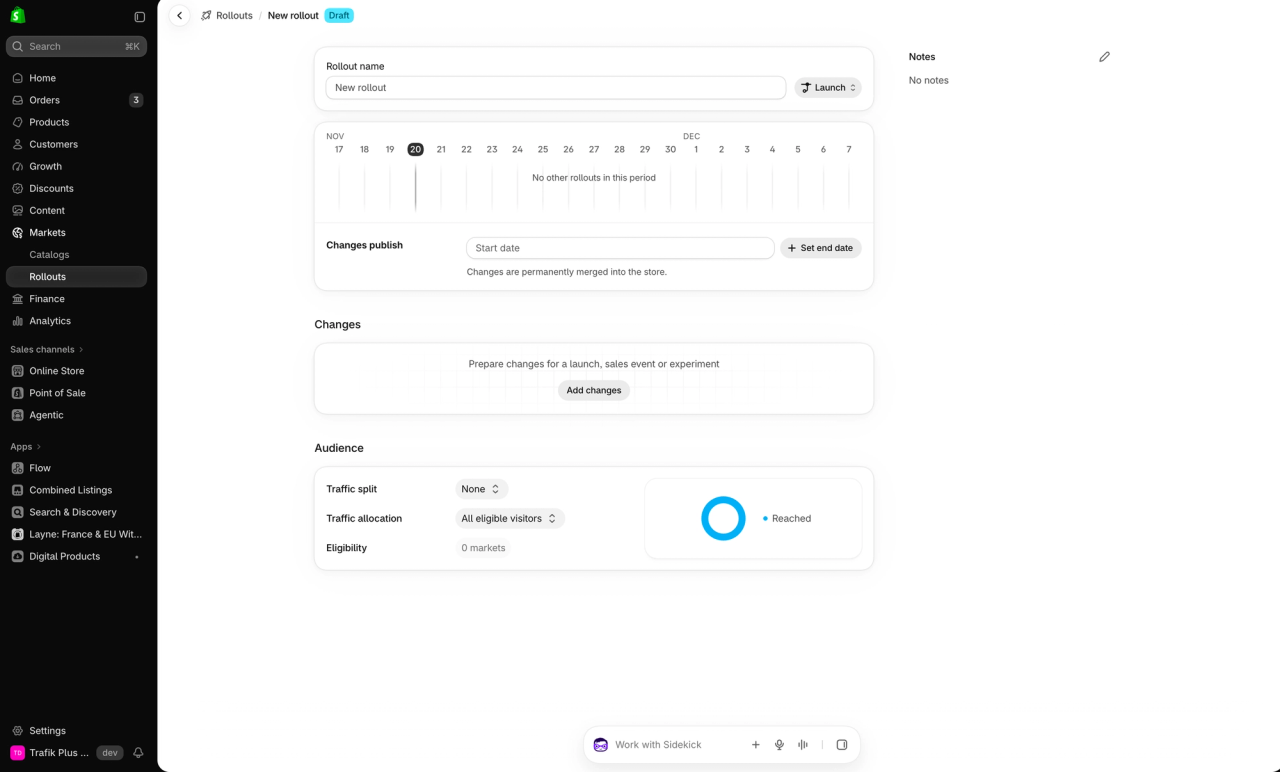
1. Open Markets > Rollouts and click Create rollout
The new rollout opens as a draft with the type set to Launch.
2. Pick the type and the dates
Choose Launch, Event or Experiment, then set the start date. A Launch can publish right away or later. An Event needs an end date. An Experiment gets an end date 90 days out by default; shorten it to your planned test length.
3. Add changes
Click Add changes and pick a theme, a checkout and accounts configuration, catalogs or discounts. If you choose "Edit theme", save the rollout first, then open the editor from the rollout. Edits made there stay inside the rollout and never touch the live theme.
4. Set the audience
Three settings control who sees the changes:
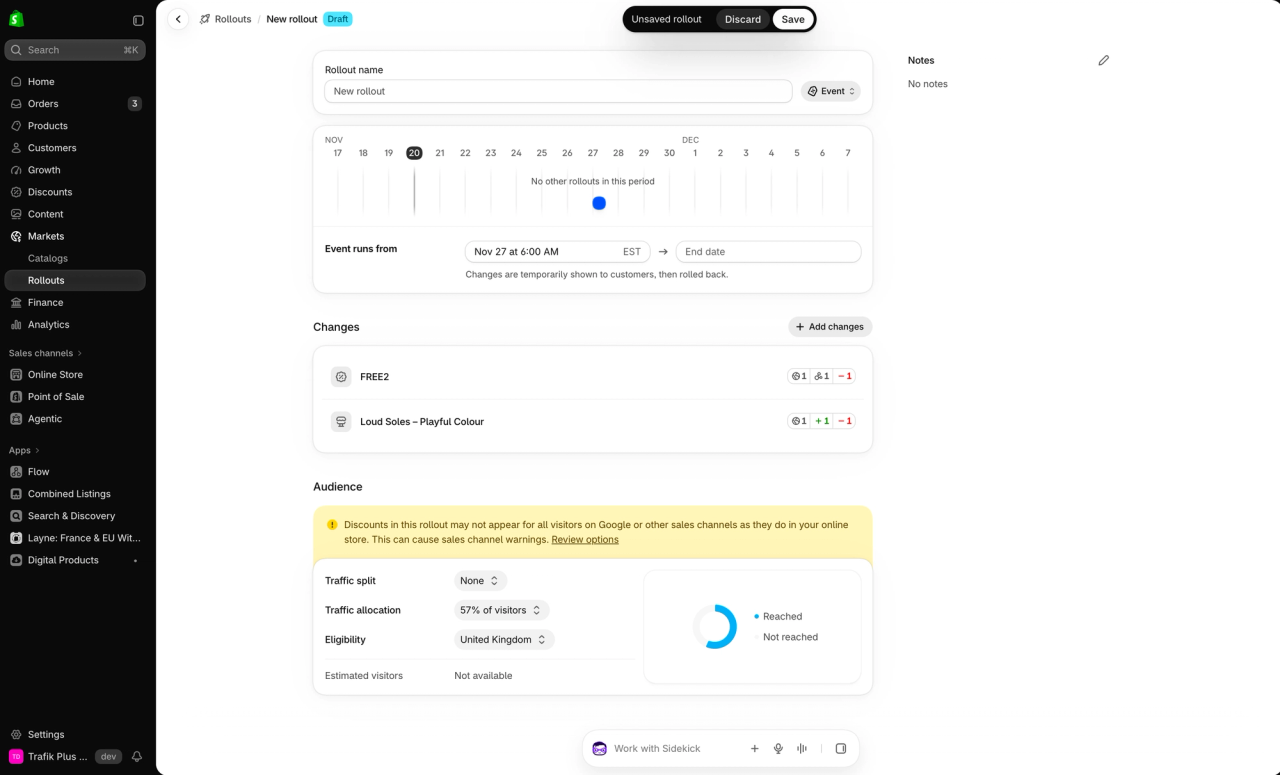
- Traffic allocation: the share of eligible visitors who enter the rollout. Below 100%, start and end dates are required.
- Traffic split: for an Experiment, how entering visitors are divided between control and treatment. 50/50 by default.
- Eligibility: the markets the changes apply to. It is read-only and comes from the changes you added. A theme replacement always applies to all markets.
5. Resolve conflicts and save
If two rollouts touch the same thing, Shopify shows either "Resolve rollout conflicts", which blocks saving, or "Review rollout conflicts", which is only a warning. Fix the blocking ones, then save. The rollout becomes Scheduled or Active depending on the start date.
A/B testing with Rollouts: how to run a test you can trust
An Experiment shows your current store to the control group and your changes to the treatment group. The split happens on Shopify's servers before the page loads, so there is none of the flicker you get with script-based testing tools. Visitors keep their group through an essential cookie.
Allocation × split = real exposure
The two audience settings multiply. With 40% allocation and a 50/50 split, only 20% of eligible visitors see the treatment, and 20% see the control. The other 60% are not counted in the test at all. Fewer counted visitors means a longer test.
How long should an experiment run?
Rollouts shows the numbers but no statistical significance, so you have to size the test yourself. The table below uses a 2.5% baseline conversion rate, a 95% confidence level and 80% power, with 1,000 sessions a day split 50/50:
Lift you want to detect | Visitors needed per group | Test length at 1,000 sessions/day |
|---|---|---|
+10% (2.5% to 2.75%) | About 64,000 | About 128 days |
+20% (2.5% to 3.0%) | About 16,800 | About 34 days |
+30% (2.5% to 3.25%) | About 7,800 | About 16 days |
Two rules follow. Small stores can only detect big changes, so test bold ideas (a new theme, a free-shipping threshold), not button colours. And always run whole weeks, at least 14 days, so weekday and weekend shoppers are both in the sample. If you need help reading your baseline, start with our guide to Shopify conversion rate.
Reading the results
Rollout analytics(opens in a new tab) update a few minutes after each visit and exclude bots. What you see depends on the rollout:
Rollout | Metrics shown |
|---|---|
Theme Launch | Gross sales, AOV, orders, total sales over time, sessions over time, conversion rate over time, new vs returning customers, bounce rate, conversion rate breakdown |
Theme Experiment | Conversion rate over time, bounce rate, reached checkout rate, add to cart rate |
Checkout Launch | Gross sales, AOV, orders, total sales over time, conversion rate over time, checkout conversion rate |
Checkout Experiment | Checkout conversion rate |
Points that change how you read the numbers:
- Only online store, cart and checkout visits count. POS and headless traffic are excluded.
- Only visitors who accepted cookies are counted, so the sample is smaller than your session count in some markets.
- Changing the split mid-test only affects new visitors. Visitors who landed in both groups in the same browser are excluded.
- If you launch a rollout immediately, no analytics are collected for it.
- No revenue per visitor or profit metric in the Experiment view. For those, query the data yourself.
For deeper analysis, ShopifyQL exposes rollout fields on the sessions and sales datasets: rollout_id, rollout_treatment_id, rollout_ids, rollout_treatment_ids, plus a WITH ROLLOUT_RESULTS modifier. You can rebuild revenue per visitor by group and test it with any significance calculator.
Tracking the variant in GA4
Rollout and treatment IDs are not sent to your pixels or to GA4. WeltPixel describes a workaround(opens in a new tab): add a variant label in each theme version, push it to the data layer as a GA4 custom dimension, and write it to a cart attribute with /cart/update.js so it lands on the order. It only works for theme tests, since the label lives in the theme.
Using Events for Black Friday and flash sales
Events are the most useful type for most stores. Build the whole sale in advance: the sale theme or homepage, the discounts, the catalog with sale prices. Set the start for Friday 00:00 and the end for Monday 23:59. At the end, everything rolls back without anyone touching the admin.
Two tips from the setups we run:
- Keep the Event at 100% allocation. A partial Event only changes the online store, while Google Shopping, Meta and marketplaces still show the old offer.
- Prepare the sale theme as a copy of your live theme, so the rollback doesn't wipe edits made during the sale. Publishing another theme by hand while the Event runs removes the rollout's theme edits.
Rollouts, Google Shopping, ads and SEO
This is the part most guides skip. Shopify's page on reach and external channels(opens in a new tab) draws a clear line:
- Launch and Event at 100% apply to all sales channels, including ads, product listings and feeds.
- Event below 100% and every Experiment apply to the online store only. Your Google Merchant Center feed and Meta catalog keep the original price and products.
So if half your visitors see a 20% discount and the feed doesn't, Google or Meta may flag a price mismatch, delist products or suspend the account. Shopify's own warning in the screenshot above says the same thing. The fixes: run price tests at 100% as an Event, pause shopping ads for the products in the test, or remove them from the feed while it runs, and check channel status daily.
For organic search, Rollouts keeps the same URLs for both groups, which is what Google's guidance on website testing(opens in a new tab) asks for: no cloaking, no test-only URLs, and tests that end in a reasonable time. Shopify doesn't document which group Googlebot falls into, so avoid experiments that remove indexable content, change titles or break structured data, and don't leave an experiment running for months.
Limits and gotchas
- No Liquid template changes. Code has to be on the live theme already.
- No vintage themes. Online Store 2.0 themes only. If you're still on a vintage theme, see our list of the best Shopify themes or the free Horizon theme.
- Online store only for theme and checkout. Headless storefronts and custom checkouts are not covered.
- No audience targeting by customer segment, tag, device or traffic source. Assignment is random within eligible markets.
- Translations: a replacement theme's content can only be translated with Translate & Adapt. Manual translation, CSV import and default-content edits don't work.
- Theme publishing is locked. Publishing another theme from the Online Store page or the editor shows a warning and removes the rollout's theme edits. Publishing through the CLI, the API, the Shopify app or another app is blocked until the rollout ends or is archived.
- Archiving is final. It can't be undone and deletes the rollout's theme changes.
Rollout statuses and what you can do with each
Status | Available actions |
|---|---|
Draft | Edit, Archive, Delete |
Scheduled | Edit, Archive, Delete |
Active | Edit, Pause, End |
Paused | Resume, End, Archive, Delete |
Ended | Archive, Delete |
When you end a rollout early, Shopify asks whether to roll back or apply the changes. For a discount you can also choose "will be applied permanently": it stays active and loses its end date. Active rollouts can't be archived or deleted, so end them first (details in Managing rollouts(opens in a new tab)).
Shopify Rollouts vs A/B testing apps
Rollouts is first a release tool, as Charle points out(opens in a new tab), and only second a testing tool. Dedicated apps still go further on analysis. Starting prices from Nikhil's comparison(opens in a new tab), August 2026:
Shopify Rollouts | Testing apps (Intelligems, Shoplift, Convert) | |
|---|---|---|
Price | ✅ Included in your plan | From $49 to $99/mo |
Server-side split, no flicker | ✅ Yes | ⚠️ Depends on the app |
Scheduling and auto-rollback | ✅ Yes | ❌ No, not built for releases |
Whole-theme test | ✅ Yes | ✅ Yes |
Price and shipping tests | ⚠️ Via discounts only | ✅ Yes, e.g. Intelligems |
Audience targeting | ❌ No, random split | ✅ Yes |
Statistical significance | ❌ No | ✅ Yes |
Profit per visitor | ❌ No | ✅ Yes, e.g. Intelligems |
Our take: use Rollouts for every launch and seasonal event, and for big theme tests on stores with enough traffic. Move to an app like Intelligems(opens in a new tab) when you test prices, shipping thresholds or targeted audiences, or when you need significance and profit reported for you.
Does Rollouts work with your theme?
Any Online Store 2.0 theme works, which covers almost every theme in the Theme Store today, including Pops, the theme we develop, and Shopify's Horizon family. Vintage themes don't. If you're building on Shopify Canvas or another AI tool, the result is still a regular theme, so you can test it against your current one with an Experiment before you publish it.
FAQ
Is Shopify Rollouts free?
Yes. It's included in every plan from Basic. Launches and Events work on all plans; Experiments (A/B tests) need Grow or higher.
Where do I find Rollouts in the Shopify admin?
Go to Markets > Rollouts. Click Create rollout to start a draft.
Can I A/B test prices with Shopify Rollouts?
Only indirectly, by activating a discount for the treatment group. The control group sees no discount. Remember that an Experiment only changes the online store, so ads and shopping feeds keep the original price.
Does Shopify Rollouts show statistical significance?
No. It shows metrics per group but no confidence interval or winner. Size your test in advance, run whole weeks for at least 14 days, and check significance yourself with ShopifyQL data.
Will a Rollouts A/B test hurt my SEO?
Not if you keep it clean. Both groups use the same URLs, which matches Google's testing guidance. Keep tests short and avoid changing indexable content, titles or structured data in the treatment.
What happens when a rollout ends?
A Launch stays. An Event rolls back automatically. For an Experiment or a rollout you end early, you choose to roll back or apply the changes.
Can I edit theme code in a rollout?
No. You can change settings, sections and blocks, or replace the whole theme, but not Liquid template code. Ship code to the live theme first, hidden behind a setting.

Keep reading

What Is Shop Pay and Is It Safe? A Guide for Shoppers and Merchants
Shop Pay is Shopify's one-tap checkout. Here is how it works, how safe it is, how to spot Shop Pay scams, and what merchants should know before turning it on or off.

Average Shopify Conversion Rate (2026): Benchmarks by Industry, Device and Funnel Step
The median Shopify store converts 1.4%, the top 20% hit 2.8%. Benchmarks by industry, device and funnel step, why sources disagree, and what to fix first.

SEO vs PPC: Organic vs Paid Search on a Fixed Budget
SEO vs PPC for a Shopify store with a fixed budget: cost per click vs cost per page, click share data, when to move spend, and a worked $3,000 budget split.