
Shopify Canvas: What It Is and What It Means for Your Theme

Summarize this article with AI


Shopify Canvas is a new visual workspace where you design your store with Sidekick. Here is what it does, what it can't do yet, and what it means for your theme.
On 1 October 2026, Shopify introduced Canvas, a visual workspace where you design your online store together with Sidekick, Shopify's AI agent. Shopify's own pitch is that anyone, whatever their design experience, coding skills or budget, can now build a bespoke store.
If you run a Shopify store, you probably have two questions. What exactly is Canvas? And what happens to the theme you paid for and spent weeks setting up?
We build Shopify themes, so we have a stake in the answer. Here is what Canvas does, what it doesn't do yet, and what we would do in your position.
What is Shopify Canvas?
Canvas, Shopify’s new visual workspace for designing online stores with AI, is in early access: for now, Shopify is opening it to certain stores, on plans that include theme customization. It is intended for use alongside Shopify’s AI sidekick, and Shopify says that anyone, whether experienced in design or not, a coder or not, with a large or small budget, can now build their own.
Despite the name, Shopify Canvas has nothing to do with canva.com(opens in a new tab). It is a Shopify feature, built by Shopify for Shopify stores.
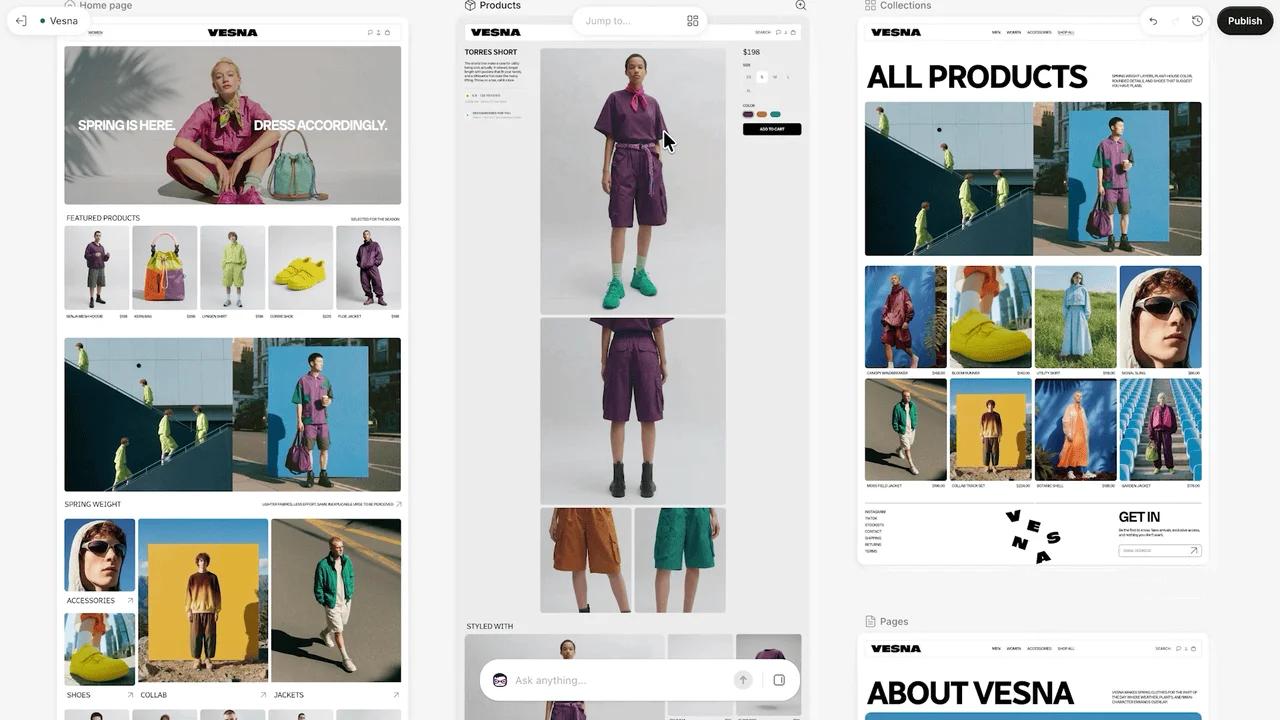
You don't drag sections around on your own. You work with Sidekick:
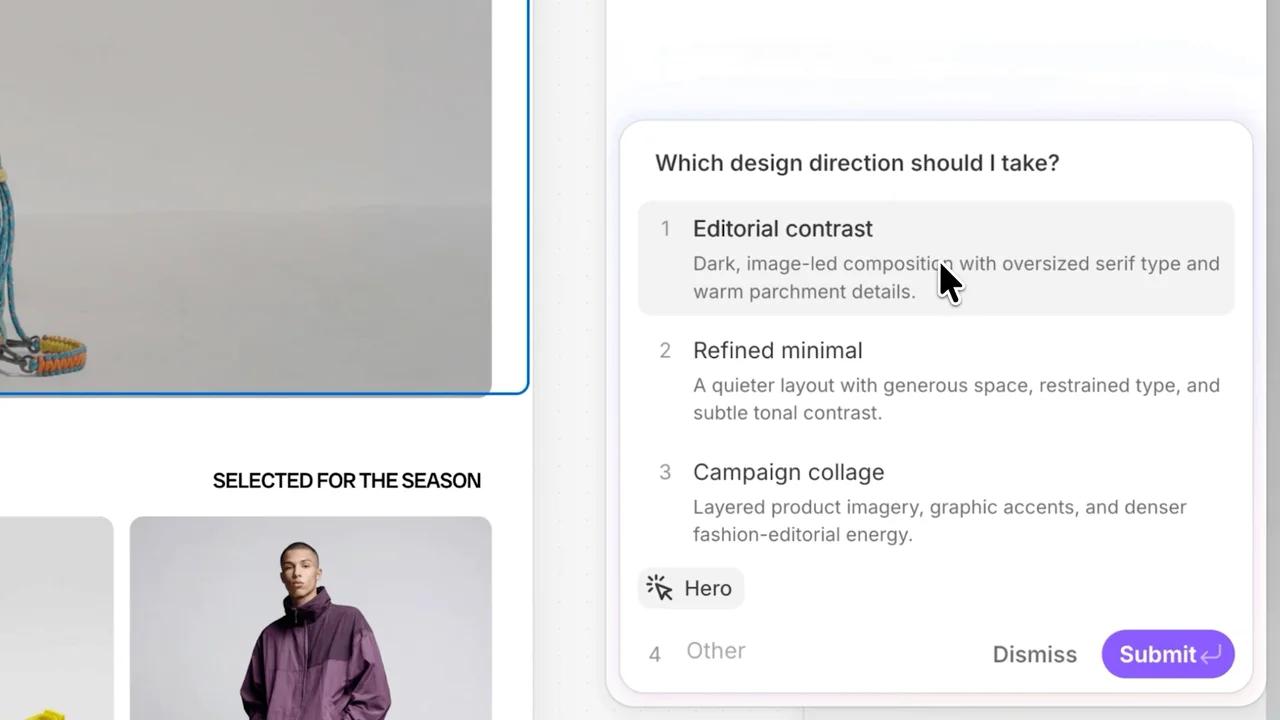
- You describe what you want. Sidekick asks questions, proposes design directions, and takes your feedback.
- Sidekick edits the theme code directly. It writes and changes theme files, from a single section to a store-wide redesign.
- It checks its own work. Sidekick validates the code it writes and takes screenshots to review the result before handing it back.
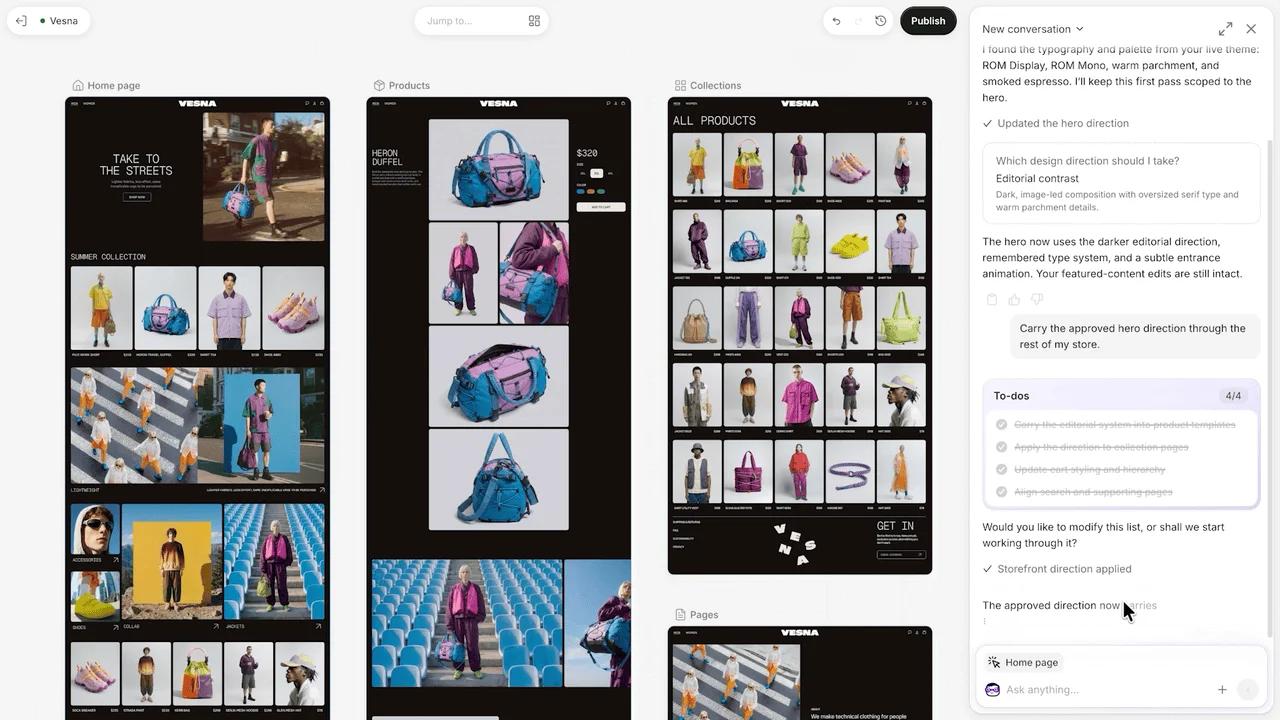
- It remembers. Your preferences and earlier design decisions carry into later requests, so you don't repeat yourself.
- You see the real store, not a mock-up. Canvas renders your store's actual code, with full interactivity and animation. You can preview each page with different products and collections, and at different screen sizes.
Shopify says Sidekick made more than 25 million edits to themes in the first half of 2026(opens in a new tab), before Canvas existed. Canvas turns that into a full design workspace.
How is Canvas different from the theme editor?
Theme editor | Canvas | |
|---|---|---|
How you work | Click settings, add and reorder sections and blocks yourself | Describe changes to Sidekick, review and refine |
What you see | One page template at a time | Every page together, pan and zoom |
What can change | What the theme's settings and blocks allow | Theme code itself, generated by Sidekick |
Skills needed | None for settings; Liquid/CSS for anything beyond them | None; you direct, Sidekick writes the code |
Status | The default, fully supported | Early access, available to certain stores |
The biggest difference is the third row. In the theme editor, your design options are limited to what your theme's developer exposed as settings. If the section you want doesn't exist, you need a developer or an app. In Canvas, Sidekick can write that section for you.
Do you have to switch to Canvas?
No. Canvas is an early, optional experience that sits alongside the current theme editor, and during early access it is only available to certain stores. Shopify is not replacing the theme editor yet, and nobody is asking merchants to migrate today. You can keep editing your store exactly as you do now.
Does Canvas work with my current theme?
Only if it is a theme developed by Shopify or a custom theme. Shopify's Help Center is explicit: Canvas works only with those two kinds of theme, and third-party themes, built by independent developers rather than by Shopify, aren't supported. Shopify has said this reflects how early the product is, not a deliberate choice, and that it is working on compatibility before Canvas becomes the default editor.
In practice:
- If your store runs a third-party theme, you can't edit it in Canvas yet. Keep using the theme editor.
- Your live theme is not affected by Canvas existing. Nothing changes until you, or Sidekick at your request, edit it.
- If you want to try Canvas on a Shopify theme or a custom theme, do it on a duplicate, not your published theme. Go to Online Store → Themes, choose Duplicate on your current theme, and experiment there. The next section explains why this matters more than usual.
Canvas requirements and limitations
Shopify lists what you need before you open Canvas, and what changes for a theme once you edit it there, in its Help Center article on Canvas requirements(opens in a new tab).
What you need
- A computer. Canvas works on desktop only.
- A plan that includes theme customization. If you later move to a plan without it, you can still view themes edited in Canvas, but you can't edit or publish them.
- A theme developed by Shopify, or a custom theme. Third-party themes aren't supported.
- The right permission for staff. Staff members need the Edit code permission, under Online store → Themes.
- Early access. Canvas is only available to certain stores for now.
What changes once you edit a theme in Canvas
- It stops receiving theme updates. Bug fixes, speed improvements and new features from the theme's developer no longer reach it.
- You can't download its theme files.
- You can't translate theme content in Canvas. Use Shopify's Translate & Adapt app instead.
- You add new blocks by asking Sidekick, not by hand.
- On some older themes, you can't edit text directly in the preview. Change it in the block's settings, or ask Sidekick.
- App blocks and app embeds aren't supported.
- Metaobject templates don't appear in the Jump to… menu.
- You can't customize the theme for different markets.
- In a rollout, an edited theme can replace your main theme, but you can't open or edit it from the rollout.
The first point matters most. Once you edit a theme in Canvas, it no longer follows its developer's updates. Keep your original theme as the one that gets updated, and do your Canvas work on a copy.
What Canvas means for themes
The honest answer: themes are changing role, not disappearing.
Until now, merchants faced a fairly clear choice. Buy a polished, ready-made theme and work within its settings, or pay an agency for a fully custom store. Canvas blurs that line. Shopify's view is that the choice between a theme and a fully custom store will become a thing of the past, and that a theme becomes a starting point you shape around your own idea.
We think that is right, and here is why a good theme still matters in a Canvas world:
- A starting point sets the ceiling. An AI agent iterating on a well-structured, fast, accessible theme produces better results than one starting from nothing. Clean code, good typography and sensible defaults carry through every change Sidekick makes.
- Taste is the hard part. Shopify's own design team has said that getting Sidekick to make good design decisions took a great deal of time and attention. A theme is a set of design decisions someone has already made and tested with real shoppers.
- Commerce details are easy to miss. Variant pickers, cart drawers, filters, translations, accessibility and page speed are where stores lose sales. A mature theme has solved them. A store designed from a blank prompt has to get each one right.
- The Theme Store isn't going away. Shopify still describes it as an important destination for merchants who want a polished, ready theme, and says theme developers will have a significant role in what comes next.
What we would do as a merchant today
- Don't migrate anything. Keep running your store from the theme editor. Canvas is optional and still maturing.
- Experiment on a copy, if your theme qualifies. Canvas needs a theme developed by Shopify or a custom theme. Duplicate it and ask Sidekick in Canvas for one specific change, such as a new homepage section or a different product page layout. You will learn quickly where it shines and where it struggles.
- Review the changes before publishing. Sidekick validates its work, but you own the result. Check the duplicate on mobile, test the cart and checkout, and run it through PageSpeed Insights before publishing.
- Keep your original theme updated. A theme edited in Canvas no longer receives theme updates, so keep your published theme out of Canvas and keep installing its updates.
- Ask your theme developer. Any serious theme team is working out how its theme will behave in Canvas. Ask what their plan is.
What about Cama and Pops?
We are working with Shopify's direction rather than against it. Our goal is for Cama and Pops to be the best starting point for a store you then make your own, in the theme editor today and in Canvas as compatibility arrives. We will update this post as that happens.
Frequently asked questions
What is Shopify Canvas?
A visual workspace, launched on 1 October 2026, where you design your Shopify store with Sidekick, Shopify's AI agent. You see every page together and Sidekick edits your theme's code based on what you ask for.
Is Shopify Canvas free?
Shopify doesn't list a separate price. Canvas is available on plans that include theme customization and, during early access, only to certain stores.
Is Canvas replacing the theme editor?
Not yet. Canvas is optional and sits alongside the theme editor. Shopify says it is working on third-party theme compatibility before Canvas becomes the default.
Does Canvas work with third-party themes?
Not yet. Canvas works only with themes developed by Shopify and custom themes. Third-party themes aren't supported.
Can I use Canvas on my phone?
No. Canvas works on desktop only.
Will my theme still get updates after I edit it in Canvas?
No. A theme you edit in Canvas doesn't receive theme updates, and you can't download its files. Edit a duplicate and keep your original theme updated.
Do I still need a Shopify theme?
Yes. Canvas edits theme code, so every store still runs on a theme. What changes is how far you can take it: the theme becomes your starting point rather than the limit of your design.
Can Sidekick break my store?
Any code change can. Sidekick checks its own work, but always make changes on an unpublished duplicate and test it before you publish.
Conclusion
Canvas is the biggest change to how Shopify stores are designed since Online Store 2.0. It is in early access, it is optional, and it doesn't support third-party themes yet. You don't need to do anything today. If your theme qualifies, try Canvas on a duplicate, keep your original theme updated, and treat your theme as the foundation you build on, because in a Canvas world that is exactly what it becomes.
Sources: Shopify's announcement, Introducing Canvas(opens in a new tab) (1 October 2026), Shopify's Help Center article Requirements and considerations for using Canvas(opens in a new tab), and Shopify's communication to Shopify Theme Store Partners.

Keep reading

Top 5 Shopify themes for beverage brands (2026)
Which Shopify theme suits a drinks or canned beverage brand in 2026? Our top 5, from Pops and Local to Shapes, Savor and Release, with prices and features.

List of Shopify themes using Theme Blocks (in 2026)
Which Shopify themes support Theme Blocks in 2026? A list of free and paid themes, from Pops and Horizon to Bricks and Vetro, with prices and designers.

Which Shopify Plan Should You Choose in 2026? Comparison and Cost Calculator
See the real prices and hidden fees of every Shopify plan. Work out your total monthly cost on each one and find the plan that fits your store.