
Shopify Claude: How to Connect Claude to Your Store and Automate Tasks

Summarize this article with AI


Official connector, Claude Code and the Shopify AI Toolkit, Flow and scheduled tasks: how to connect Claude to Shopify, what it can do, what stays blocked and 12 ready-to-copy prompts.
Since April 2026, Claude can connect straight to your Shopify store. Shopify built the connector itself, and Anthropic verified it. You can ask for this month’s sales, create a product, adjust inventory or generate a discount code without opening the Shopify admin. But not everything is allowed, and some of the access rules catch merchants off guard.
This guide covers the three ways to link Claude and Shopify, how to set up the official connector in five minutes, what Claude can and can’t do in your store, and how to automate further with Shopify Flow and Claude’s scheduled tasks.
Quick answer: for a merchant, the simplest option is the Shopify connector for Claude, installed from Claude’s connector directory. Shopify charges nothing on top of your plan. It reads your orders, customers, inventory and analytics, and it can edit products, collections, inventory and discount codes once you approve. It can’t refund, cancel an order or touch payments. Start with read-only access: once you grant an access level, you can’t lower it without uninstalling.
What changes when you connect Claude to Shopify?
Claude is Anthropic’s AI assistant. On its own, it sees nothing in your store: you have to paste in your exports. With a connector (built on MCP, the Model Context Protocol), Claude calls the Shopify API directly. It reads live data and can act in the admin for you.
In practice, a question like “What’s my average order value this month compared with last month?” no longer means opening Analytics, picking dates and comparing. Claude runs the query and answers in the chat.
Claude isn’t the only option. According to the Shopify Help Center(opens in a new tab), ChatGPT, Gemini, Grok, Perplexity, Muse and Microsoft Copilot also have a Shopify connector. This guide focuses on Claude.
3 ways to connect Claude to Shopify
When people search for “Shopify Claude”, they usually mix up three tools built for different people.
Method | Who it’s for | What it does | Setup |
|---|---|---|---|
Shopify connector for Claude (official) | Merchants, no code | Reads and edits your store from a Claude chat | From Claude’s connector directory |
Shopify AI Toolkit for Claude Code | Developers | Docs, API schemas, Liquid and GraphQL validation, store actions through Shopify CLI | Claude Code plugin, Node.js 18 or later |
Third-party connectors (Zapier, n8n, Windsor.ai, Supermetrics…) | Data and marketing teams | Combine Shopify with other sources (ads, email) or automate through workflows | Account with the vendor, then a connector in Claude |
If you run the store day to day, the official connector is enough. The AI Toolkit is mostly for editing a theme or building an app. Third-party connectors make sense when your questions go beyond Shopify: margin after ad spend, ROAS by campaign, and so on.
How to connect Claude to your Shopify store in 5 steps
Shopify recommends doing the setup on a computer, in a browser. After that, the connector works in Claude on the web, Claude Desktop, Cowork and the mobile app, according to the Claude Help Center(opens in a new tab) (setup from mobile is still in beta).
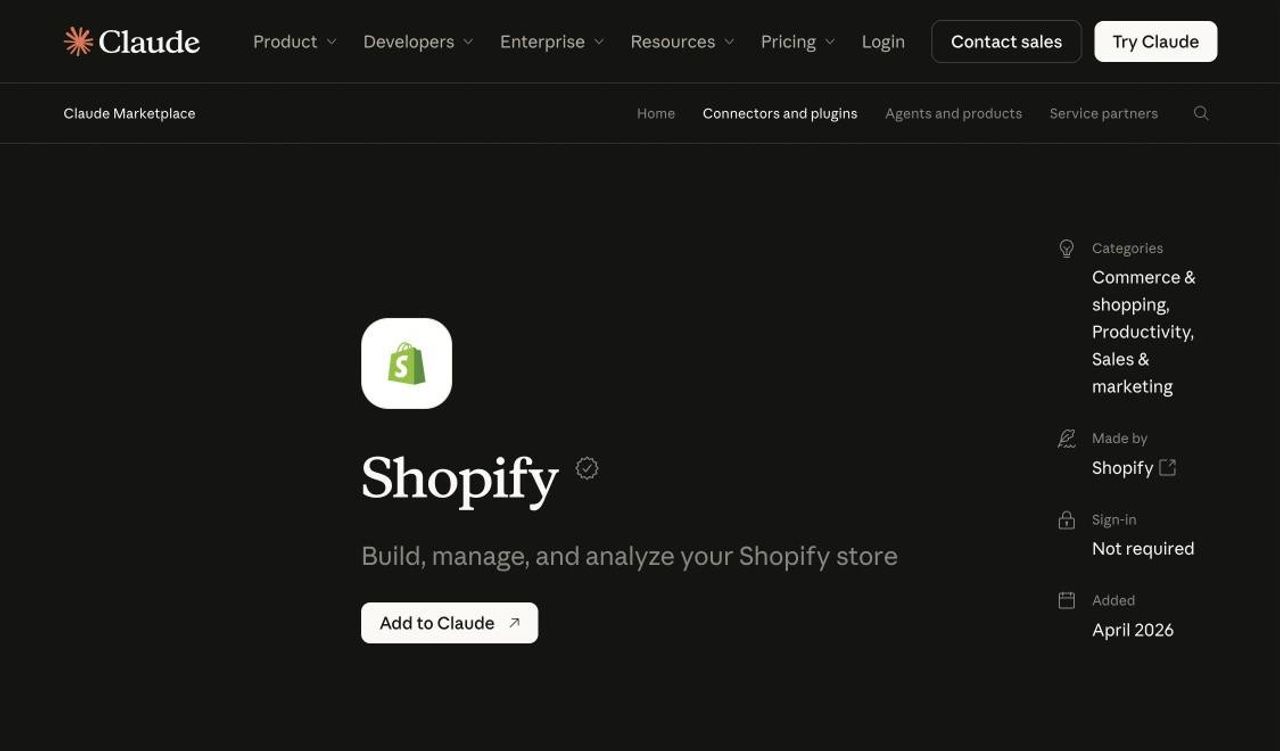
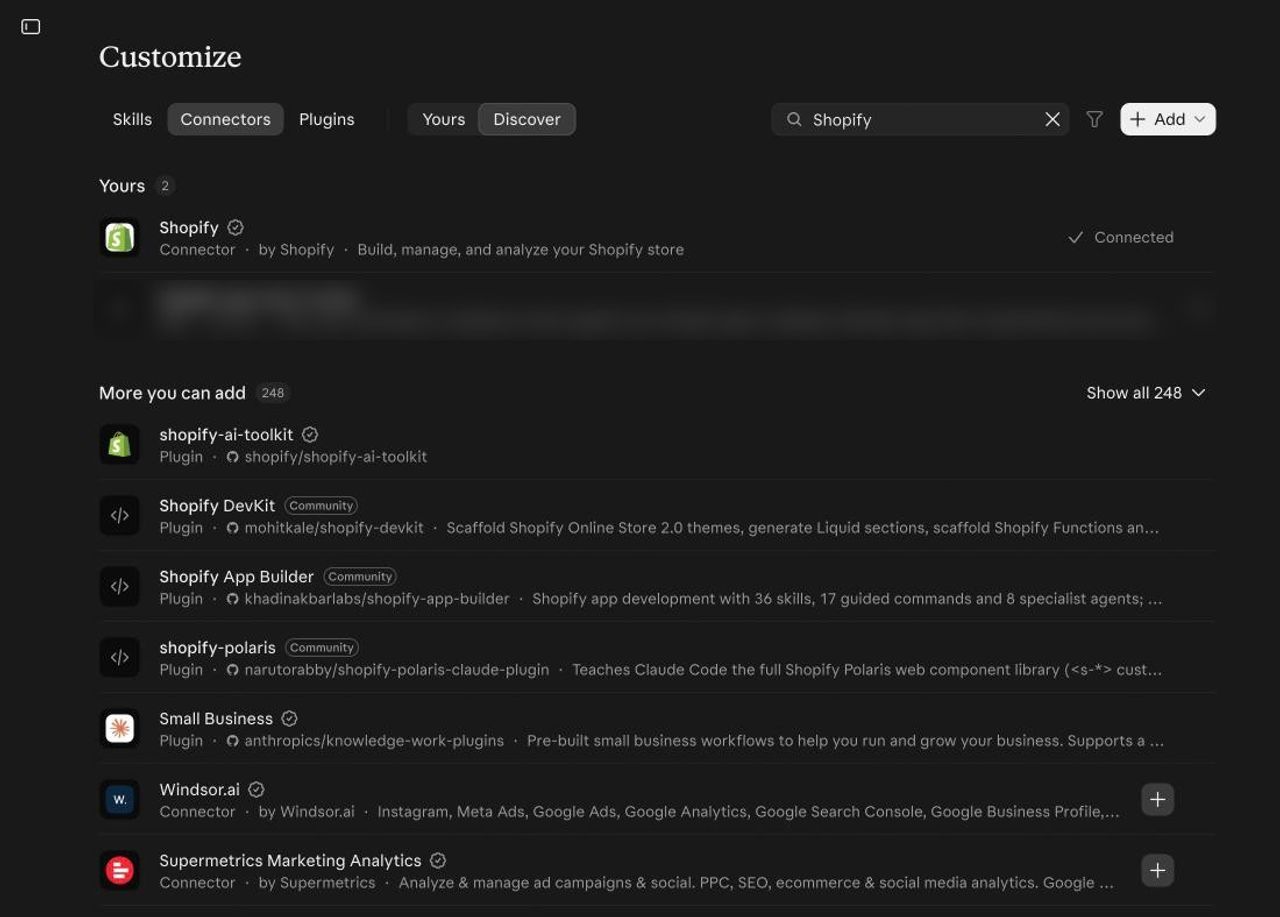
- Open Claude, go to Customize > Connectors and search for Shopify. You can also start from the connector page(opens in a new tab).
- Click the + button next to Shopify (or Add to Claude on the connector page). You’re sent to the Shopify admin.
- Read the requested permissions before you approve. Some are read-only, others include write access.
- Back in Claude, open the connector’s settings. For each tool, you choose: always allow, needs approval or blocked. By default, interactive tools need your approval. Careful: in Auto mode, Claude can act without asking, and only actions it judges risky are held back.
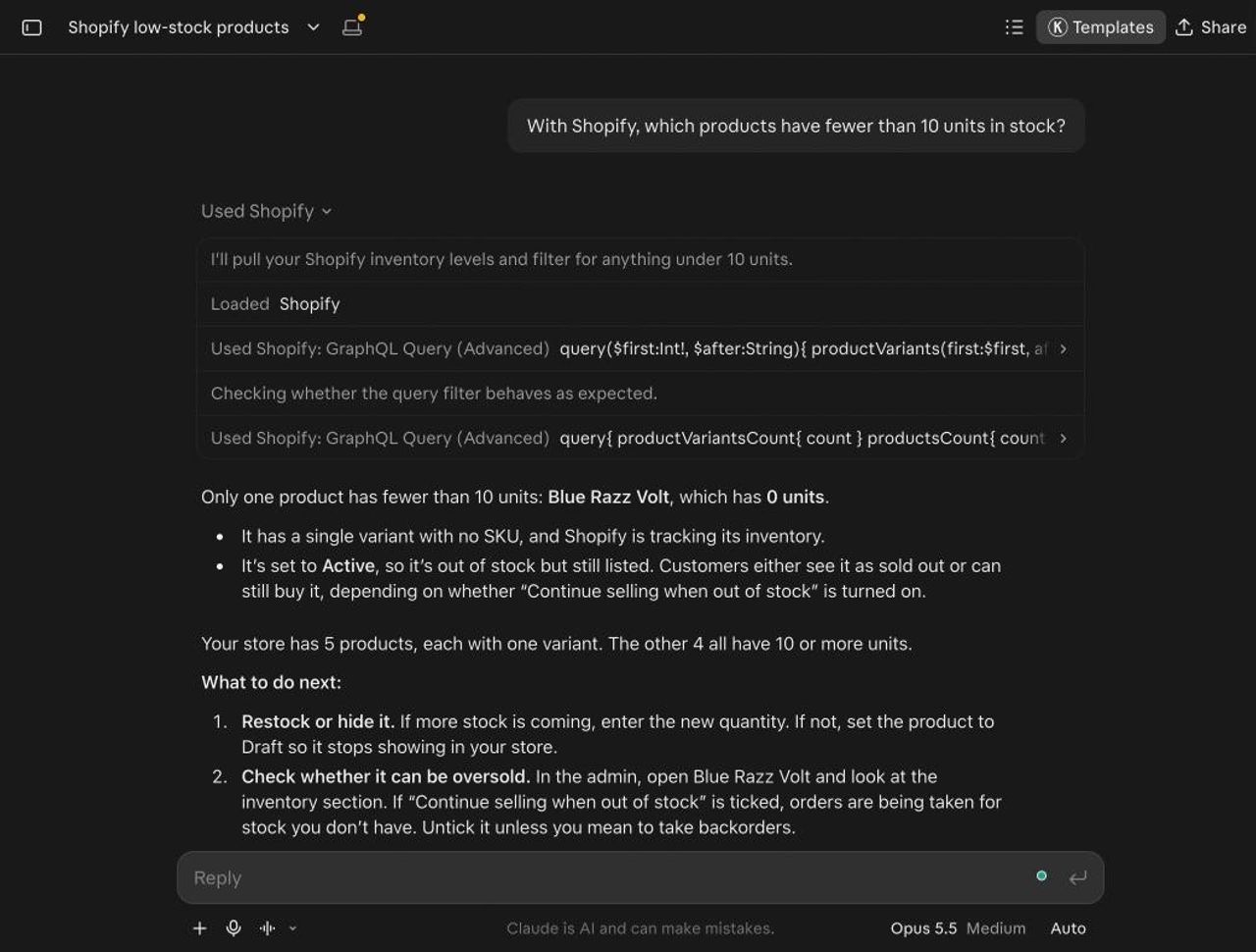
- Test with a request that names Shopify, for example: “With Shopify, show me my last 10 orders.” If you don’t mention Shopify, Claude may explain how to do it by hand in the admin instead.

Two rules to know before you approve:
- One store at a time. To switch stores, ask Claude to connect to another one, then start a new chat: older chats can keep the previous connection.
- No going back on permissions. According to Shopify(opens in a new tab), you can’t reduce an access level you already approved. To go back to read-only, uninstall the integration from the Shopify admin and install it again.
Don’t have a store yet? The connector can create one from the chat, before you even have a Shopify account. It stays password-protected until you claim it through the link Claude gives you. Careful: until it’s claimed, anyone with its address can view and edit it from an AI tool.
What Claude can (and can’t) do in your store
The connector page(opens in a new tab) in the Shopify Help Center lists every tool. Here’s what matters.
Read: orders, customers, inventory and analytics
- Orders: lists up to 50 orders at a time, plus the details of a single order.
- Analytics: read-only ShopifyQL queries on your sales. Shopify recommends short questions: nested comparisons can fail or return results that are hard to read.
- Customers: search by name, email, location or tag.
- Inventory: stock levels by product and by location.
Write: products, collections, inventory and discount codes
- Products: create (title, description, price, variants, options), edit, and change status (active, draft, archived) in batches of 50.
- Collections: create manual or automated collections, edit them, add products.
- Inventory: update a quantity. Claude reads the current quantity first and stops if it changed in the meantime.
- Discount codes: percentage only (“15% off with code COZY15”). No fixed-amount discounts, and existing codes aren’t edited.
- Pages, blog, menus, metafields, markets and translations: possible through the GraphQL API, after you confirm. Shopify warns that results are less consistent.
- Theme: changes go to an unpublished copy of your theme, with a preview. Publishing always needs your confirmation. Visual editing with Shopify Canvas from Claude has been announced but isn’t available yet.
Images you send in the chat must be under 20 MB (JPEG, PNG, GIF, WebP or HEIC). No video or 3D models.
What stays blocked, even with write access
- Refunding, canceling or capturing an order, or marking it as paid.
- Processing a return.
- Creating or editing a gift card.
- Changing your plan, payment methods, taxes or domain.
These actions always go through the Shopify admin. That’s good news: a badly worded prompt can’t trigger a refund.
12 prompts to automate your Shopify store with Claude
Start each request with “With Shopify,” so Claude uses the connector. The first six prompts are read-only and carry no risk for your store.
Task | Prompt to copy | Access |
|---|---|---|
Sales report | With Shopify, give me my sales for the last 30 days, by product. | Read |
Average order value | With Shopify, compare my average order value this month with last month. | Read |
Orders to ship | With Shopify, list unfulfilled orders older than 2 days. | Read |
Upcoming stockouts | With Shopify, which products have fewer than 10 units in stock across all locations? | Read |
Top customers | With Shopify, show my 20 highest-spending customers. | Read |
Dead stock | With Shopify, which active products have had no sales in 60 days? | Read |
Product descriptions | With Shopify, rewrite the description of these 5 products in a warm tone. Show me the text before saving it. | Write |
Bulk status | With Shopify, set every product in the Summer 2025 collection to draft. | Write |
Seasonal collection | With Shopify, create a “Gift Ideas” collection with my 12 best sellers. | Write |
Discount code | With Shopify, create a 15% code called HOLIDAY15. | Write |
Inventory update | With Shopify, how many Vanilla candles are left? Set the stock to 40. | Write |
Brand page | With Shopify, create an “Our Story” page from this text and add it to the main menu. | Write |
For product descriptions, always ask for a preview before saving. Claude writes well, but it doesn’t know your products better than your current descriptions do. For search, check its suggestions against our Shopify SEO guide.
To track the right numbers in your read-only prompts, our article on ecommerce metrics lists the seven KPIs worth watching.
Real automation: Claude, Shopify Flow and scheduled tasks
A prompt is a one-off action. To make a task run on its own, two tools pair well with Claude.
Shopify Flow, driven by Claude
Shopify Flow(opens in a new tab) is Shopify’s automation tool: a trigger (new order, low stock…), conditions, actions. The app is free on the Basic, Grow, Advanced and Plus plans. Some actions, such as sending HTTP requests, need at least the Grow plan.
Since October 28, 2026, an AI agent can manage your Flow workflows through the Shopify AI Toolkit, according to the Shopify changelog(opens in a new tab): create, edit, delete, turn on or turn off a workflow. You describe the rule (“when an order is over $200, add the VIP tag to the customer”), and Claude builds the workflow. This runs through Claude Code and the AI Toolkit, not through the chat connector.
Scheduled tasks in Claude Cowork
Cowork, Claude’s desktop workspace, lets you schedule recurring tasks(opens in a new tab): hourly, daily, weekly or on weekdays. They run remotely, even when your computer is asleep. The feature is for paid plans only (Pro, Max, Ultra, Team and Enterprise).
With the Shopify connector turned on, you can schedule a weekly recap every Monday morning, for example: sales, average order value, out-of-stock products and late orders. Keep these tasks read-only. An automatic catalog change with no review is the fastest way to push one mistake to 200 product pages.
For automated emails (welcome, abandoned cart, post-purchase), Claude isn’t the right tool. Stick with Shopify Email or Klaviyo: our guides to Shopify email flows and abandoned cart emails walk through the setup.
Claude Code and the Shopify AI Toolkit, for themes and apps
The Shopify AI Toolkit(opens in a new tab) is built for developers. It gives Claude Code (Claude in the terminal) access to Shopify’s documentation, API schemas and validation for GraphQL, Liquid and extension code. Store actions go through Shopify CLI, and you decide when to run them.
You need Node.js 18 or later. Shopify recommends installing it as a plugin, which updates itself:
claude plugin install shopify-ai-toolkit@claude-plugins-official
If you only want the docs and validation, with no store access, the Dev MCP server is enough:
claude mcp add --transport stdio shopify-dev-mcp -- npx -y @shopify/dev-mcp@latest
Typical use cases: building a custom theme section, migrating an extension to a new API version, fixing a Liquid bug. Shopify is clear that the toolkit doesn’t replace reviewing and testing the result. Work on a duplicate theme, never on the live one.
Claude or Sidekick: which one should you use?
Shopify already has its own AI assistant, Sidekick(opens in a new tab), built into the admin. The two overlap, but not completely.
Criteria | Sidekick | Claude + Shopify connector |
|---|---|---|
Where you use it | In the Shopify admin and the Shopify mobile app | In Claude (web, Desktop, Cowork, mobile) |
Subscription | No separate AI subscription | Claude subscription, billed by Anthropic |
Context | Knows Shopify very well | Can combine Shopify with your files, email and other connectors |
Recurring tasks | No | Yes, with Cowork scheduled tasks (paid plans) |
Refunds, cancellations | Through the admin | Blocked |
Our take: use Sidekick for quick questions when you’re already in the admin. Use Claude when the task mixes several sources (a supplier file, a pricing spreadsheet, your Shopify sales) or when you want to repeat it every week.
How much does Claude for Shopify cost?
Shopify charges nothing extra for the connector: you pay your usual Shopify plan. On Claude’s side, Anthropic says directory connectors are available to all users, but free plan usage limits come quickly once you chain requests. Cowork scheduled tasks need a paid plan. Check Claude’s pricing page(opens in a new tab) for current prices.
Security: 6 rules before you grant write access
When you authorize the connector, the data you choose leaves Shopify and falls under Anthropic’s terms and privacy policy. Shopify says so plainly. A few simple rules keep the risk down:
- Start read-only for one to two weeks. You won’t be able to lower permissions later without uninstalling.
- Connect a staff account with limited permissions rather than the owner account: Claude can’t do more than the connected account.
- Ask for a preview before every change (“show me the changes before you save them”).
- Test on a few products before a bulk change. Batches are processed one by one and can stop partway through.
- Check important numbers in the admin. Time zone, net or gross sales, refunds: a different definition is enough to skew an answer.
- Don’t create an API token yourself to plug Claude in: Shopify advises against building your own integration and points to the official connector.
To remove access, uninstall the integration from the Shopify admin. You can also disconnect it in Claude, under Customize > Connectors.
Frequently asked questions
How do I connect Claude to Shopify?
In Claude, open Customize > Connectors, search for Shopify and click the + button (or Add to Claude on the connector page). You’re sent to the Shopify admin to approve the requested permissions. Then name Shopify in your requests (“With Shopify, …”) so Claude uses the connector.
Is the Shopify connector for Claude free?
Shopify charges nothing on top of your plan. The connector is available from every Claude account, but regular use and scheduled tasks need a paid Claude subscription, billed by Anthropic.
Can Claude refund or cancel a Shopify order?
No. Even with write access, Claude can’t refund, cancel, capture or mark an order as paid, or process a return or a gift card. Those actions stay in the Shopify admin.
Can I connect several Shopify stores to Claude?
Not at the same time. The connector handles one store at a time. To switch, ask Claude to connect to another store, then start a new chat.
What’s the difference between the Shopify connector and the Shopify AI Toolkit?
The connector is for merchants: it manages the store from a Claude chat. The AI Toolkit is for developers: it gives Claude Code the documentation, API schemas and code validation to build themes and apps, plus store access through Shopify CLI.
What is Shopify MCP?
MCP (Model Context Protocol) is the protocol that lets an AI assistant use outside tools. Shopify runs several MCP servers: the connector’s server for merchants, Dev MCP for developers, and storefront and customer account servers used by shopping agents.
Can Claude edit my Shopify theme?
Yes, but on an unpublished copy of your theme, with a preview. Publishing always needs your confirmation. For deeper development work, Claude Code with the Shopify AI Toolkit is a better fit.

Keep reading

Best Shopify Bundle Apps for Supplement Brands in 2026
The best Shopify bundle apps for supplement brands compared: supplement stacks, 30/60/90-day supply breaks, Subscribe & Save bundles and what each costs.

Best Shopify Bundle Apps for Skincare Brands in 2026
We compared 7 Shopify bundle apps for skincare brands: routine sets, build-your-own boxes, discovery kits and refill discounts, with prices checked in October 2026.

Best Shopify Bundle Apps for Pet Food Brands in 2026
We compared 7 Shopify bundle apps for pet food brands: multi-bag quantity breaks, wet food variety packs, puppy starter kits and subscribe-and-save bundles.