
Shopify Search Optimization: Turn Searchers Into Buyers

Summarize this article with AI


How Shopify search works, how to set up the free Search & Discovery app, fix zero-result queries and decide when a paid search app is worth it.
Shopify search is the search bar on your online store, and the shoppers who use it are the closest thing you have to a customer saying exactly what they want. Shopify's own blog cites Forrester research(opens in a new tab) finding that people who use the search bar are 2 to 3 times more likely to convert than those who don't. Optimizing it costs nothing in ad spend: you make the traffic you already pay for find the product it came for.
This guide covers how Shopify's built-in search works in 2026, what the free Search & Discovery app adds (filters, boosts, synonyms, product recommendations, analytics), how predictive search in your theme fits in, how to fix zero-result queries, and when a paid search app is worth the money.
Why site searchers are your best visitors
A shopper who types "linen duvet king" into your search bar has done half the selling for you. They know the category, the material and the size. Browsing visitors are still deciding whether they want anything at all.
That intent cuts both ways. When search fails, the visitor doesn't keep browsing politely. In a Harris Poll survey commissioned by Google Cloud(opens in a new tab), 76% of US consumers said an unsuccessful search resulted in a lost sale for the retail website, with 48% buying the item elsewhere. The same survey found that 94% of consumers globally reported receiving irrelevant results while searching on a retailer's site.
Most stores also get the basics only half right. Baymard Institute's benchmark(opens in a new tab) found search autocomplete on 80% of e-commerce sites, but only 19% got all the implementation details right.
So the lever is simple: fewer failed searches, more relevant first results, and better paths from the results page to a bigger cart.
How Shopify search works out of the box
Every Shopify online store has search on by default. According to Shopify's storefront search documentation(opens in a new tab), core search includes predictive search and typo tolerance, and the optional Search & Discovery app adds customization on top.
What the built-in engine does, per Shopify's search behavior reference(opens in a new tab):
- Searches these product fields: title, description (body), product type, tags, vendor, variant title, SKU and barcode. Pages and blog posts can appear too.
- Tolerates typos that differ from the search term by one letter, on titles, product types, tags, variant titles and vendors.
- Uses semantic understanding: Shopify's Modifying search page(opens in a new tab) says it checks related words, categories and relationships between concepts, using your titles, descriptions, product types, categories and tags (not images). It is on by default; you don't switch it on.
- Puts sold-out products last by default.
- Does not let you change the sort order. Shopify states plainly that there is no setting for how results are ordered.
That last point matters. You can't reorder results globally, so the levers you do have are your product data (titles, types, tags, categories), product boosts, and what you hide.
Hide what shouldn't be found
Gift-with-purchase items, samples, wholesale variants and old one-off products clutter results. Shopify's searchability guide(opens in a new tab) gives two options: set the product status to Unlisted (hidden from storefront search, sitemaps and internet search, still reachable by URL), or create a product metafield seo.hidden (Integer, value 1) under Settings > Metafields and metaobjects and set it on the products to hide. The Bulk Editor can set it on many products at once.
Capability | Built-in search | Search & Discovery app (free) | Your theme |
|---|---|---|---|
Typo tolerance and semantic matching | Yes | Uses the same engine | - |
Predictive search dropdown | Engine provides it | Choose result types | Must support it |
Filters on search and collections | No | Yes, up to 25 | Must support filters |
Product boosts | No | Up to 10 terms per boost | - |
Product recommendations | Automatic | Manual: 10 complementary + 10 related | Needs the blocks |
Search analytics | In Analytics > Reports | Last 30 days in the app | - |
Predictive search: the part your theme controls
Predictive search is the dropdown that shows suggested queries and products as the shopper types. Shopify's predictive search page(opens in a new tab) is clear on the catch: it only appears if it is a feature of your published theme. By default it returns up to 10 results across the requested types (queries, products, collections, pages, articles).
Why it matters: a shopper who sees the right product under the search field after four letters never reaches a results page, and never hits an empty one. It also corrects the query as it's typed, since suggested terms come from words in your catalog.
What to check in your theme:
- Open your store on a phone, tap the search icon, type the first three or four letters of a best-seller. Products should appear before you press enter.
- Check that each suggestion shows an image and a price, so the shopper can tap straight through.
- Type a common misspelling of your top product. Typo tolerance should still find it.
- In Apps > Search & Discovery > Settings, choose which result types predictive search returns. Shopify says new stores request queries, products and collections by default.
Our Shopify themes with predictive search (Cama and Pops) use Shopify's native predictive search, so there is no extra script to slow the page. Cama can also pin featured keywords and products at the top of results.
Set up the Shopify Search & Discovery app
The Shopify Search & Discovery app(opens in a new tab) is free and made by Shopify. Install it, then work through its sections in this order.
1. Filters
Filters let shoppers narrow a results page or collection by availability, price, product type, vendor, tags, category, variant options (size, color) or metafields. Go to Apps > Search & Discovery > Filters > Add filter, pick a source, rename the label if needed, and save.
Limits from Shopify's filters documentation(opens in a new tab) worth knowing before you plan:
- 25 filters maximum per store.
- Filters are hidden on collections with more than 5,000 products.
- Up to 100 values are shown to customers per filter.
- Your theme must support filters; check under Content > Menus, where an unsupported theme shows a message in the "Collection and search filters" section.
Group messy values. If your catalog has "Navy", "Dark blue" and "Midnight", group them under "Blue" so the color filter stays short. Our theme feature for collection filters and sorting shows how this renders on a storefront.
2. Product boosts
A boost puts a chosen product at the top of results for specific search terms. Go to Apps > Search & Discovery > Search > Product boosts > Create product boost, select the product and add up to 10 search terms per boost.
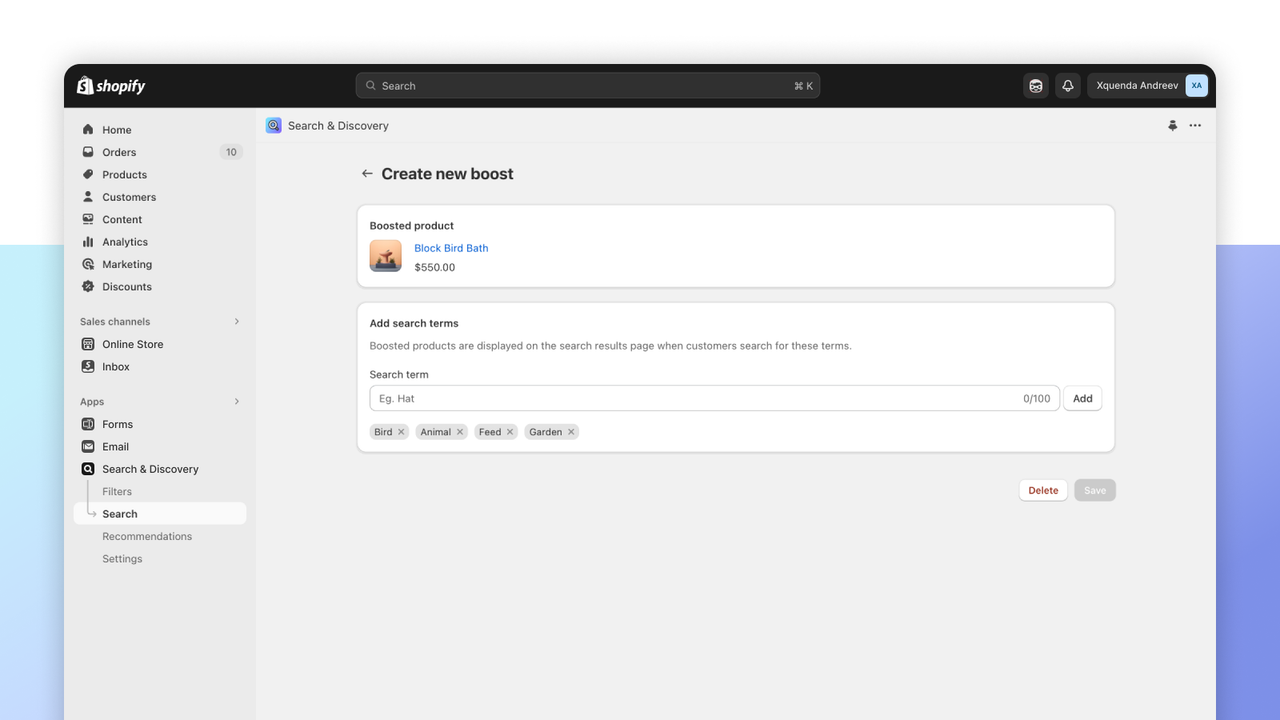
Rules from Shopify's help center: boosts only apply to products available for sale, they don't apply when the query uses search syntax, and Shopify recommends boosting one product (or a few) per term. You don't need to boost misspellings or plural forms.
Use boosts for your highest-margin or best-reviewed product on broad terms ("serum", "gift", "running shoes"), and for your best bundle on gifting terms.
3. Synonyms: check what your admin shows
Synonym groups ("hoodie", "sweatshirt", "pullover") used to be the main fix for vocabulary mismatches. The App Store listing(opens in a new tab) still advertises them, but Shopify's current Modifying search help page no longer documents synonym groups; it describes semantic understanding doing that work automatically. If your admin still shows Search > Synonyms, add groups for the words your customers use that never appear in your product copy. If it doesn't, put those words in product titles, descriptions, product types and tags, which semantic understanding reads.
4. Product recommendations
Search brings a shopper to a product page; recommendations decide whether they leave with one item or two. In Apps > Search & Discovery > Product recommendations > Add recommendations, you can set, per product, up to 10 complementary products (bought together) and up to 10 related products (substitutes). Per Shopify's recommendations page(opens in a new tab), complementary products need a compatible theme block and must be active and in stock.
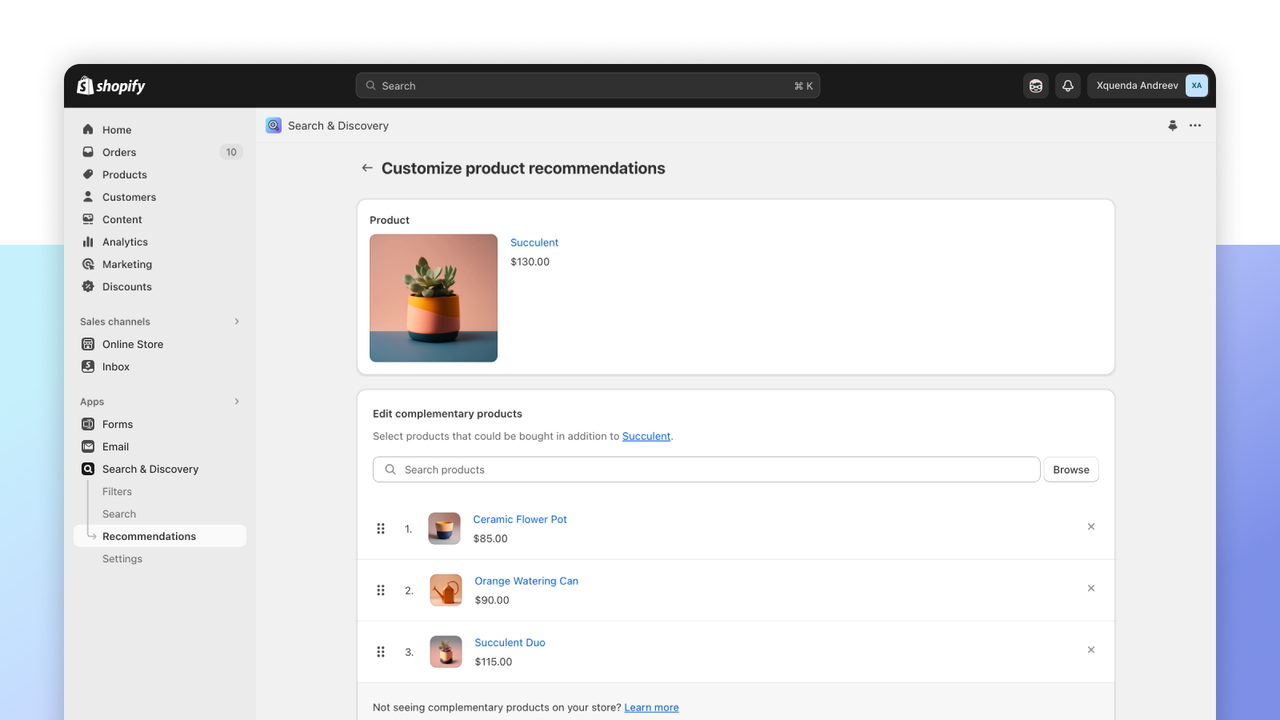
Pick complementary items that cost the same or less than the main product; that is Shopify's own advice and it keeps the add-on an easy yes. Our complementary products feature and the guide on upsell vs cross-sell go deeper on which pairing to choose.
Fix zero-result queries first
A search with no results is the most expensive page on your store: a high-intent visitor told you what they want and you showed them nothing.
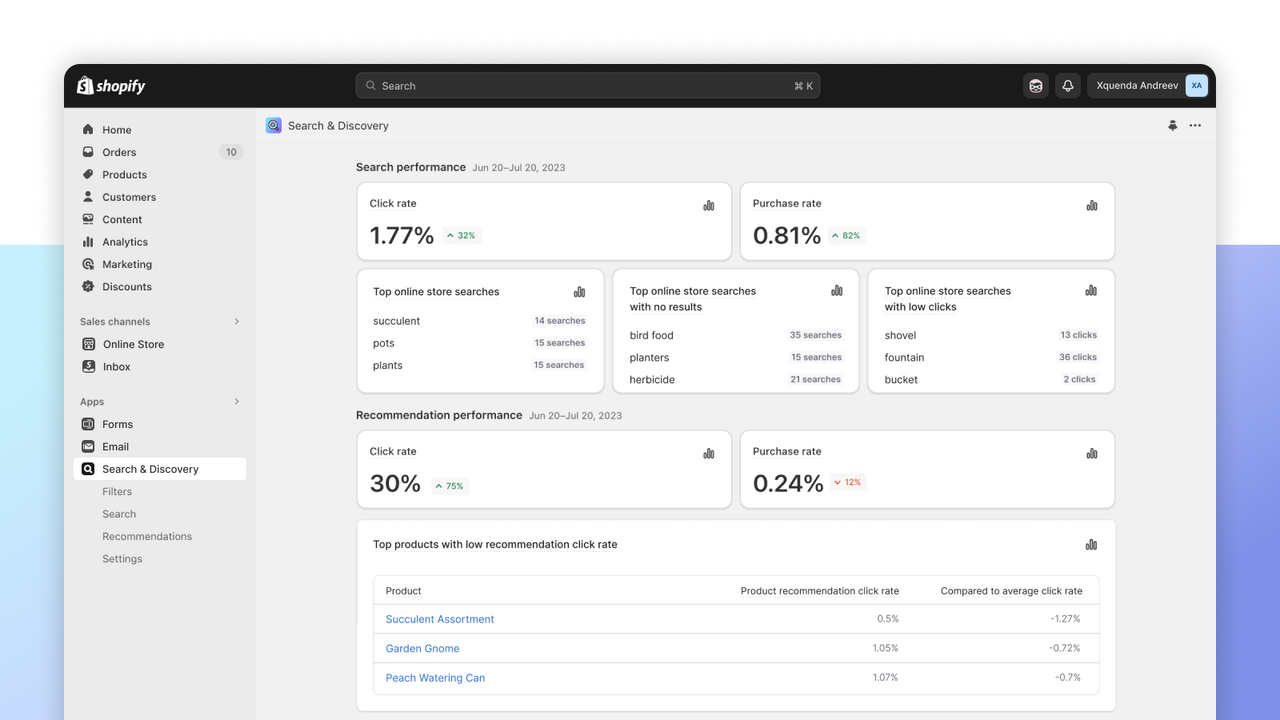
Here is the routine, once a month:
- Open Apps > Search & Discovery > Analytics (last 30 days) or Analytics > Reports for longer ranges, and open "Searches with no results".
- Sort by number of searches. Work through the top 20 only.
- For each query, decide which case it is: a word you don't use (fix titles, tags or product type, or add a synonym if available), a misspelling typo tolerance misses (add the term to tags), a product you sell but have hidden or not published to the Online Store channel (publish it), or a product you don't carry (consider stocking it, or boost the closest alternative).
- Re-run each query on your storefront to confirm results now appear.
- Then open "Searches with no clicks": these return results, just not the right ones. Boost the product that should win.
Worked example
Take a store with 10,000 sessions a month and a $40 average order value. Suppose 1,500 sessions use search (read your own figure in Analytics), and 12% of those searches return nothing: 1,500 × 0.12 = 180 dead-end sessions a month.
If fixing the top queries lets those sessions convert at a 4% search purchase rate, that's 180 × 0.04 = 7.2 extra orders, and 7.2 × $40 = $288 a month, about $3,456 a year. No new traffic, no new ad budget, roughly an hour of work a month. The numbers are illustrative: replace the 12% and 4% with your own "Searches with no results" share and "Purchase rate" from the app.
The search analytics report, read correctly
Shopify's Search & Discovery analytics documentation(opens in a new tab) lists five search reports. They cover the full search results page, not predictive search.
Report | What it tells you | What to do |
|---|---|---|
Searches by search query | Your most common searches | Make sure the top 10 return your best product first |
Searches with no results | Queries that find nothing | Fix product data, publish, or boost an alternative |
Searches with no clicks | Results nobody clicked | Boost the right product; check images and titles |
Click rate | Share of searches with a click on a result | Track month over month after fixes |
Purchase rate | Share of searchers who buy a product found in results | Compare with your store conversion rate |
Note the blind spot: shoppers who click a product in the predictive dropdown don't show up in these reports. If your theme has good predictive search, your click rate on the results page can look low simply because the best searches never reached it.
When a third-party search app is worth it
For most stores under a few thousand products, native search plus Search & Discovery is enough once product data is clean. Paid search apps start to pay off when one of these is true:
- Large or technical catalogs: you need filters on collections over 5,000 products, more than 25 filters, or exact SKU and part-number matching.
- Merchandising rules: you want to pin, bury or reorder results by margin, stock or season, which native search doesn't allow.
- Relevance problems you can't fix in data: recent reviews on the Search & Discovery listing(opens in a new tab) complain about the 2026 changes. One merchant wrote that "A simple search that used to work great now returns hundreds of incorrect results." Another said it "always displays a 1000 products that are completely unrelated to any search terms." The app's rating stood at 2.6 out of 5 (510 reviews) when we checked in October 2026.
App | Pricing on the Shopify App Store (October 2026) | Best for |
|---|---|---|
Free | Filters, boosts, recommendations on small and mid catalogs | |
Free under 25 products; Basic $19/month up to 1,500 products; Essential $39/month up to 7,500 products | Merchandising, banners and instant search without a developer | |
Free tier with 10K search requests/month; Grow plan then $0.50 per 1K searches | Large catalogs and teams with developer time |
Run the maths before installing one. At $39 a month, the app has to bring about one extra $40 order a month to break even; at the worked example's 7.2 extra orders, it would. If your zero-result list is short and your top queries already return the right product, spend the money elsewhere.
Speed is part of the decision too: every search app adds a script. Check our Shopify speed optimization guide before and after installing.
Turn the search visit into a bigger order
Searchers land on a product page already sold on the item. That page is where you can raise order value without more traffic: complementary products below the buy button, and quantity or bundle offers on the product itself. Snap Bundle(opens in a new tab) adds volume discounts, mix and match bundles and tiered free gifts to the product page; it is free while bundle revenue stays under $500 a month, then $12.99 a month with no order cap. For more levers, see how to increase AOV on Shopify without an upsell app.
Quick checklist
- Test predictive search on mobile with your top 5 products.
- Hide samples, gifts and old products from search.
- Install Search & Discovery and set up 5 to 10 filters.
- Boost one product on each of your 10 broadest queries.
- Fix the top 20 zero-result queries every month.
- Add complementary products to your 20 best-sellers.
Start with the zero-result report this week: it is the shortest list of shoppers who wanted to buy and couldn't. Then make sure the product page they land on gives them a reason to add a second item.
FAQ
Is Shopify Search & Discovery free?
Yes. Shopify Search & Discovery(opens in a new tab) is a free app made by Shopify. It adds filters, product boosts, product recommendations and search analytics to your online store.
Why is my Shopify search not showing a product?
Check that the product is active and published to the Online Store channel, that it is not set to Unlisted or hidden with the seo.hidden metafield, and that the words the shopper typed appear in its title, description, product type, tags, vendor, variant title or SKU.
Can I change the order of Shopify search results?
Not globally. Shopify states there is no setting for result order. You can push specific products to the top for chosen terms with product boosts in Search & Discovery, and sold-out products appear last by default.
How do I add predictive search to my Shopify store?
Predictive search is part of Shopify's core search, but it only shows if your published theme supports it. Most current themes do; our themes with predictive search use the native feature without an extra app.
Where do I see what customers search for on Shopify?
Open Apps > Search & Discovery > Analytics for the last 30 days, or Analytics > Reports for longer ranges. The reports include searches by query, searches with no results and searches with no clicks.
Do I need a paid Shopify search app?
Only if native search runs out: very large catalogs, more than 25 filters, collections over 5,000 products, or merchandising rules that reorder results. Check that the extra orders cover the monthly fee first.

Keep reading

How to Reduce Cart Abandonment on Shopify: 12 On-Site Fixes
Seven in ten carts are abandoned. Here is how to measure your rate in Shopify, why shoppers leave, and 12 cart and checkout fixes that keep more of them.

SEO vs PPC: Organic vs Paid Search on a Fixed Budget
SEO vs PPC for a Shopify store with a fixed budget: cost per click vs cost per page, click share data, when to move spend, and a worked $3,000 budget split.

How to Increase ROAS From Your Store, Not Your Ad Account
ROAS = conversion rate × AOV ÷ CPC. Here is how to raise the store side of that formula, landing pages, bundles, checkout, email and LTV, with worked numbers.