
Show a second product image on hover in Shopify
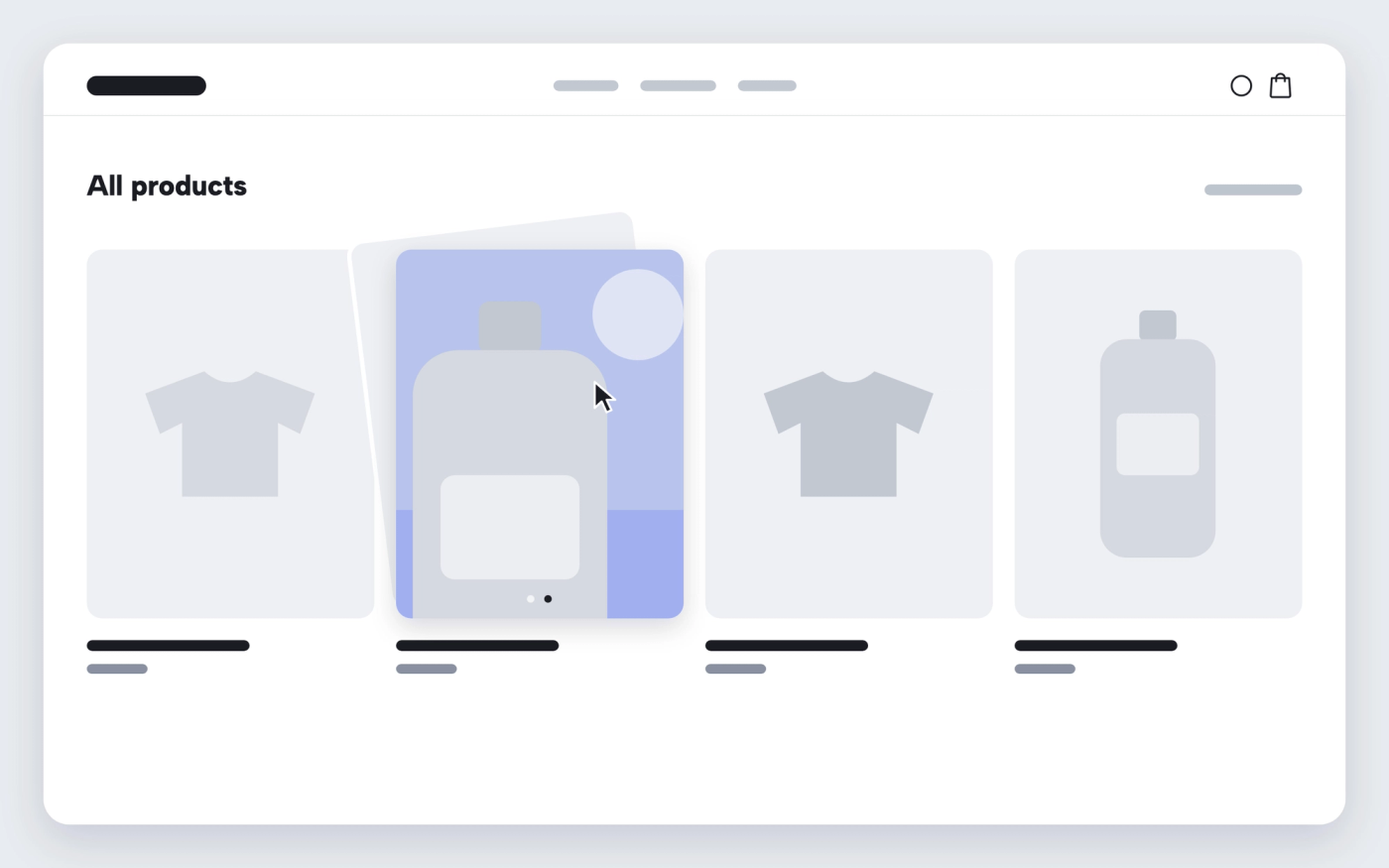
Swap the product card photo for the second image when shoppers hover, so they see another angle without opening the product.
Available in
The problem
A product card shows one photo. Shoppers who want to see the back, the fit or the product in use must open each product page, then go back to the collection.
The solution
Cama and Pops show the product’s second image when the pointer rests on a product card. The theme follows the media order you set in Shopify, so there is nothing extra to upload. One theme setting turns it on or off for every product card in the store, and a product with a single image keeps that image.
How it works
-
Order the media
In the product’s media in Shopify admin, put the image you want on hover in second place.
-
Check the theme setting
In the theme editor, open the theme settings and keep the second image on hover option for product cards turned on.
-
Preview a collection
Open a collection page and hover a product card to check each pair of images.
Questions merchants ask
What if a product has only one image?
The card keeps the first image, and nothing changes on hover.
What happens on phones?
Touch screens have no hover, so the card shows the first image and a tap opens the product.
Can I turn the effect off?
Yes. One theme setting turns it off for every product card.
Related features
 Saves €6/month
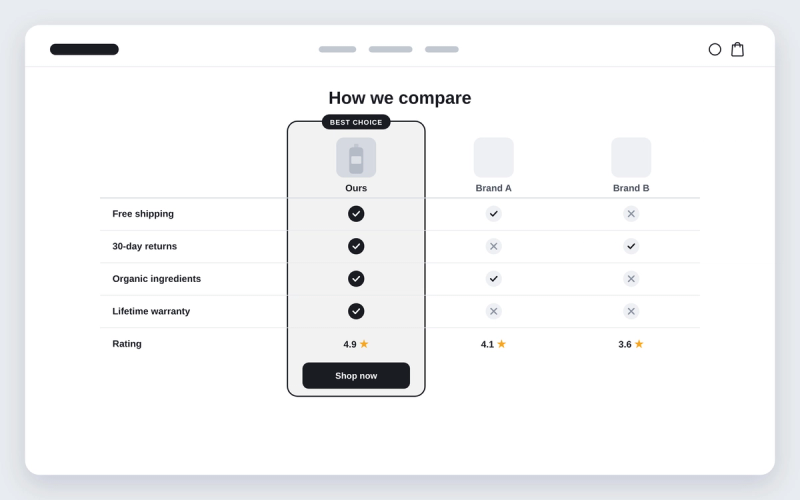
Shopify theme with a comparison table section
Compare your product with the alternatives, row by row, with ticks and crosses.
 Saves €3/month
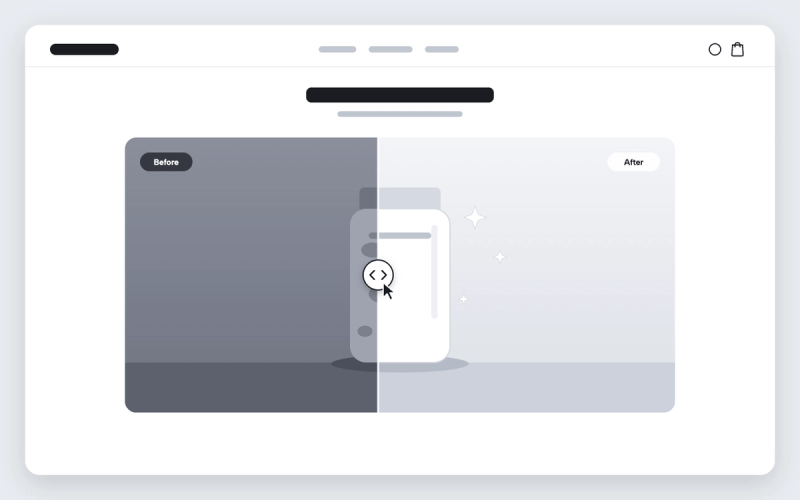
Before and after image slider for Shopify
Shoppers drag a divider across two images to see the difference your product makes.
 Saves €17/month
Instagram-style stories for Shopify
Round story bubbles that open a viewer of image and video slides, like on Instagram.
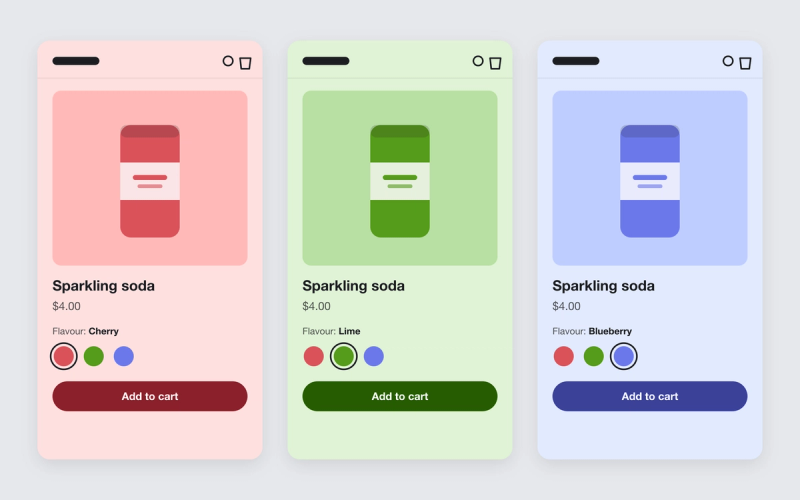
Shopify theme that changes the product page background color per variant
Give each variant a color. When a shopper picks another flavour or shade, the whole product page takes on that color.

Shopify theme that uses OKLCH colors
Pops turns every color in your color schemes into OKLCH, so one hue change recolors the store and contrast stays where you set it.

Shopify blog post template built from blocks
Lay out your blog posts with blocks: tables, sliders, accordions, newsletter forms and more, around the article text.