
Shopify contact form with custom fields
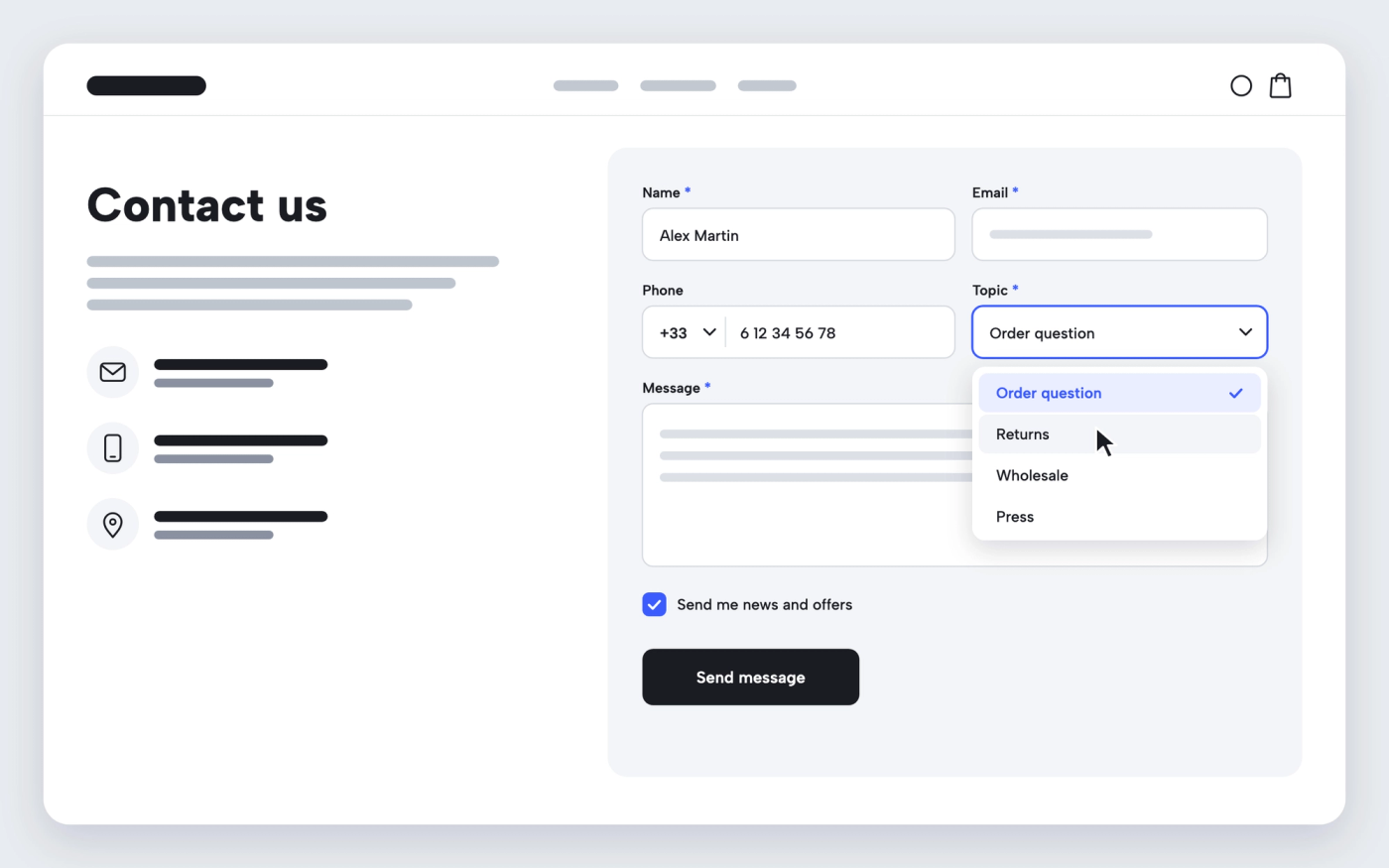
Build the contact form your store needs, with phone numbers, dropdowns, checkboxes and required fields, without an app.
Available in
The problem
A basic contact form asks for a name, an email and a message. Stores that need an order number, a phone number or a request type end up with a form app, or with emails that miss the details.
The solution
Pops builds the contact form from blocks. Add text or phone fields, an email field, a dropdown with up to 10 options, a checkbox, a message box and the submit button, in the order you want. Mark any field as required, and place fields side by side with a group. Messages reach the store email set in Shopify, like the standard contact form, with each field named.
How it works
-
Add the Contact form block
In the theme editor, add the Contact form block to your contact page or to any section.
-
Add your fields
Add the fields you need, set their labels and placeholders, and mark the ones that must be filled in as required.
-
Send a test message
Submit the form from the storefront and check the email that reaches your store address.
Questions merchants ask
Where do the messages go?
To the store email set in Shopify, as with Shopify’s standard contact form.
Can a field be required?
Yes. Each field has its own Required setting.
Can the form sit in a popup?
Yes. The Contact form block also works inside an Opener popup or drawer.
Related features
 Saves €6/month
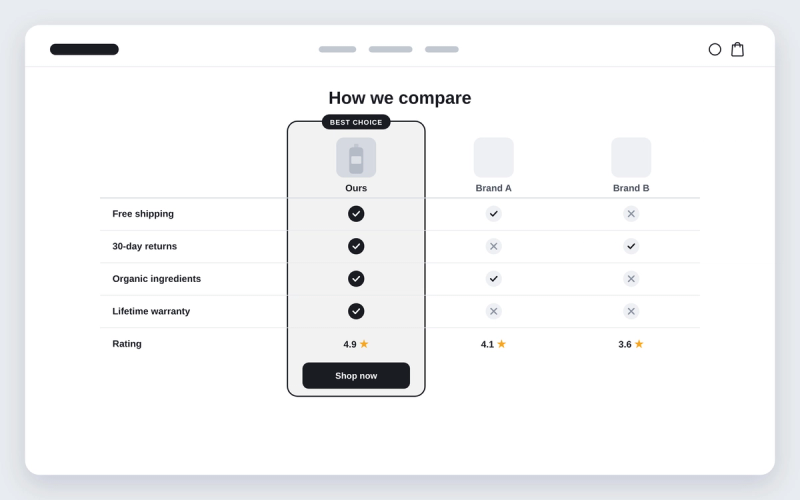
Shopify theme with a comparison table section
Compare your product with the alternatives, row by row, with ticks and crosses.
 Saves €3/month
Before and after image slider for Shopify
Shoppers drag a divider across two images to see the difference your product makes.
 Saves €17/month
Instagram-style stories for Shopify
Round story bubbles that open a viewer of image and video slides, like on Instagram.
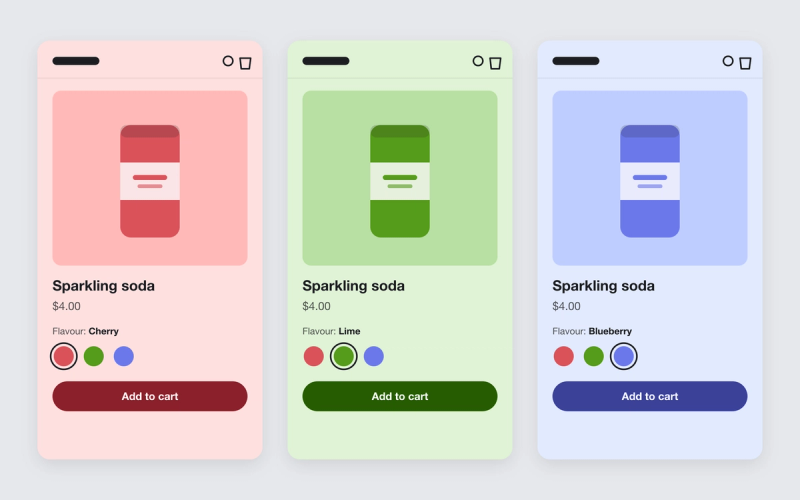
Shopify theme that changes the product page background color per variant
Give each variant a color. When a shopper picks another flavour or shade, the whole product page takes on that color.

Shopify theme that uses OKLCH colors
Pops turns every color in your color schemes into OKLCH, so one hue change recolors the store and contrast stays where you set it.

Shopify blog post template built from blocks
Lay out your blog posts with blocks: tables, sliders, accordions, newsletter forms and more, around the article text.