
How to Create a Collection in Shopify (2026 Guide)

Summarize this article with AI


Manual or automated, conditions, sub-collections, SEO: how to create a collection in Shopify step by step, then use it to sell build-a-box bundles with Snap Bundle.
A collection groups products on a single page: "New arrivals", "Sale", "Summer dresses", "Gift sets". It's what shoppers browse from your menu, and it's the category page Google indexes.
In this guide you'll learn how to create a collection in Shopify step by step, how to choose between a manual and an automated collection, how to create sub-collections, and how to optimize your collection pages for search. Finally, we'll show how to use your collections to sell bundles with Snap Bundle, the bundle app we build at Trafik Plus.
In short: in your Shopify admin, go to Products > Collections and click Add collection. Give it a title and a description, then use the right-hand panel to choose which products get in: by conditions (tag, price, type…), by hand, or both. Save, check the collection is published to the Online Store channel, then add it to your menu so shoppers can find it.
What is a Shopify collection?
A collection is a group of products you put together to help customers find what they're looking for. Each collection gets its own page on your store, at an address like your-store.com/collections/summer-dresses, with a title, a description, an image and its own search engine listing.
A product can belong to several collections. A red dress can sit in "Dresses", "New arrivals" and "Sale" at the same time.
Common ways to organize a catalog into collections:
- By product type: T-shirts, Hoodies, Pants.
- By audience: Women, Men, Kids.
- By occasion: Mother's Day, Christmas, Back to school.
- By price: Gifts under $20.
- By merchandising: New arrivals, Best sellers, Sale.
Manual or automated collection: what changed
For years, Shopify made you pick one of two collection types when you created a collection:
Type | How products are added | Best for |
|---|---|---|
Manual | You pick products one by one | A small curated selection, a gift set, the home page collection |
Automated | Shopify adds every product that meets your conditions (tag, price, type, vendor, inventory…) | Large catalogs, sales, new arrivals, any category that changes often |
In 2026, Shopify launched a new collections model(opens in a new tab). In the admin, that choice is gone: a single collection can combine conditions, hand-picked products, exclusions and even other collections. That new screen is what this guide's screenshots show. If your store still shows a "Collection type" section with Manual and Automated options, the idea is the same: "Manual" means hand-picked products, "Automated" means conditions.
Our advice hasn't changed: as soon as a collection goes beyond a dozen products or changes often, rely on conditions. A new product tagged "summer-2026" joins the "Summer 2026" collection on its own, without you thinking about it.
How to create a collection in Shopify, step by step
The screenshots below come from Snap Bundle's demo store, a bakery. We create a "Gâteaux" (cakes) collection in it.
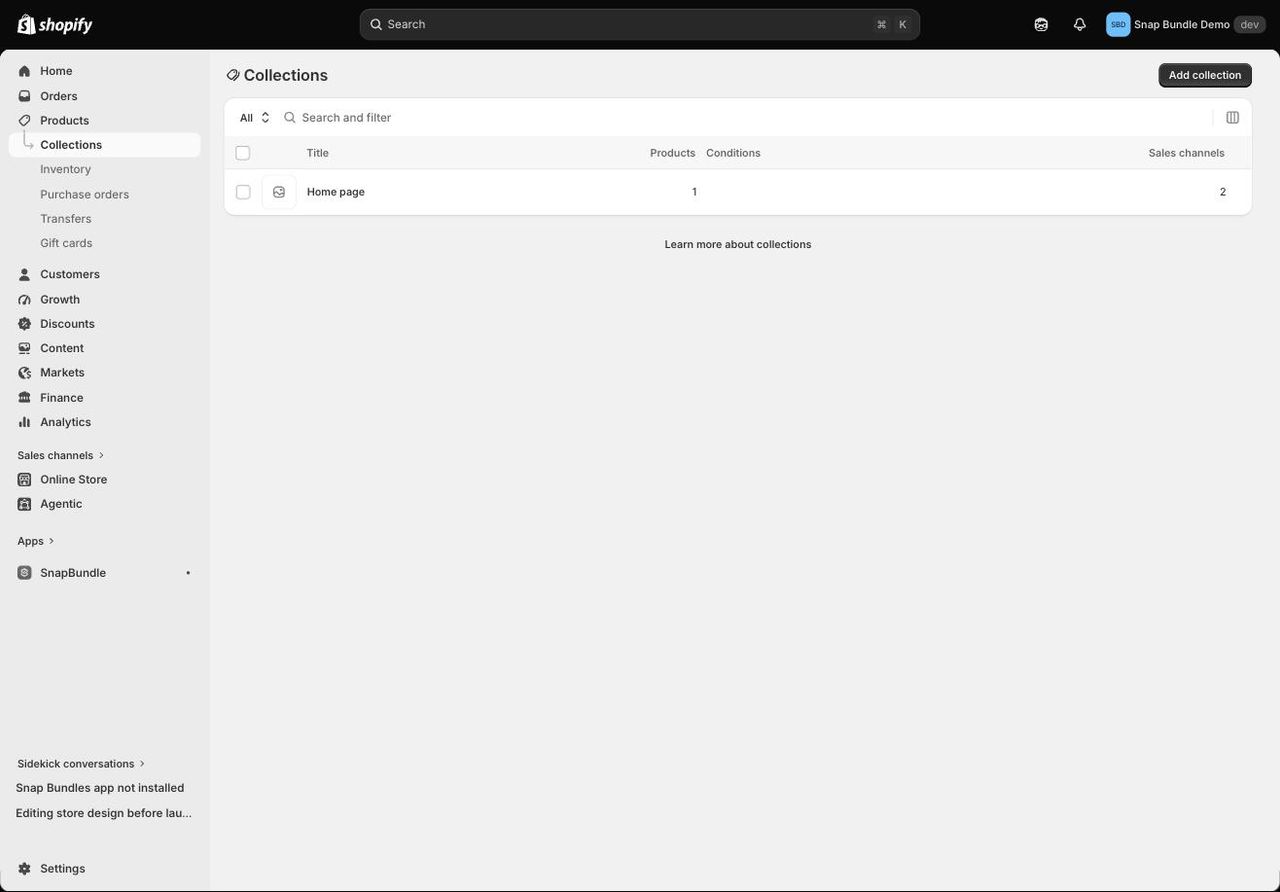
Step 1: open Products > Collections
Log in to your Shopify admin. In the left sidebar, click Products, then Collections.
The list shows your collections with their product count, conditions and sales channels. Every store has at least one from day one: the "Home page" collection, which most themes use on the home page.
Step 2: click "Add collection"
Click Add collection at the top right of the page. The form opens: image and title at the top, a product preview below, and on the right the panel that decides which products go into the collection.
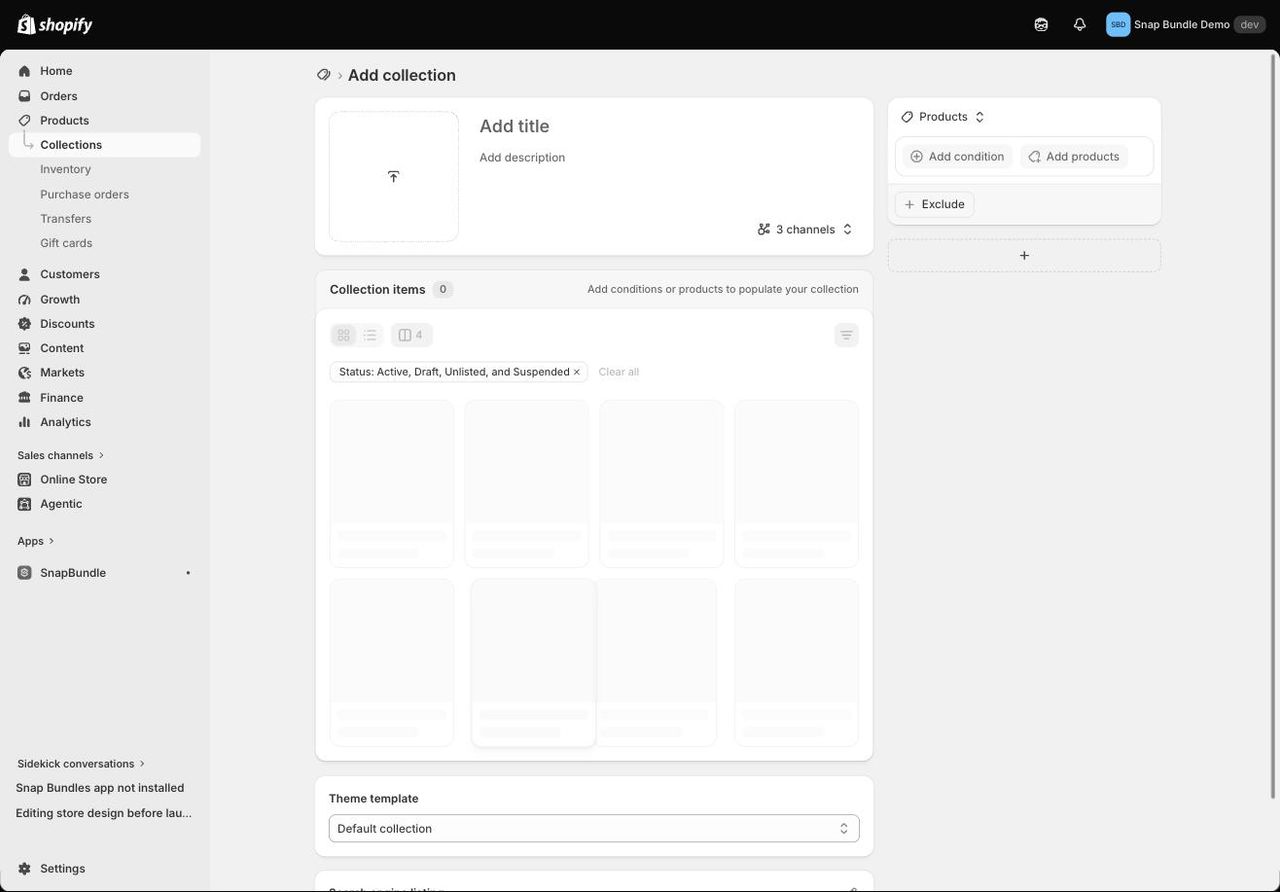
Step 3: add a title, a description and an image
The title is the collection name shown on your store. It's also the page's main heading and the basis of its URL. Use the words shoppers actually search for: "Summer dresses" rather than "SS26 drop".
The description appears above or below the products depending on your theme. Two or three sentences are enough: say what the collection contains and who it's for. It also helps Google understand the page (more on that in the SEO section).
The image goes in the square to the left of the title. It shows in your theme's collection lists and in social share previews.
Step 4: choose where products come from
The right-hand panel holds one or more sources. Each source starts with a type selector:
- Products: products filtered by conditions or picked by hand. This is the most common case.
- Variants: specific variants, such as a single size or color.
- Collection: every product from one or more other collections. This is the basis of sub-collections, covered below.
- App: products supplied by an app.
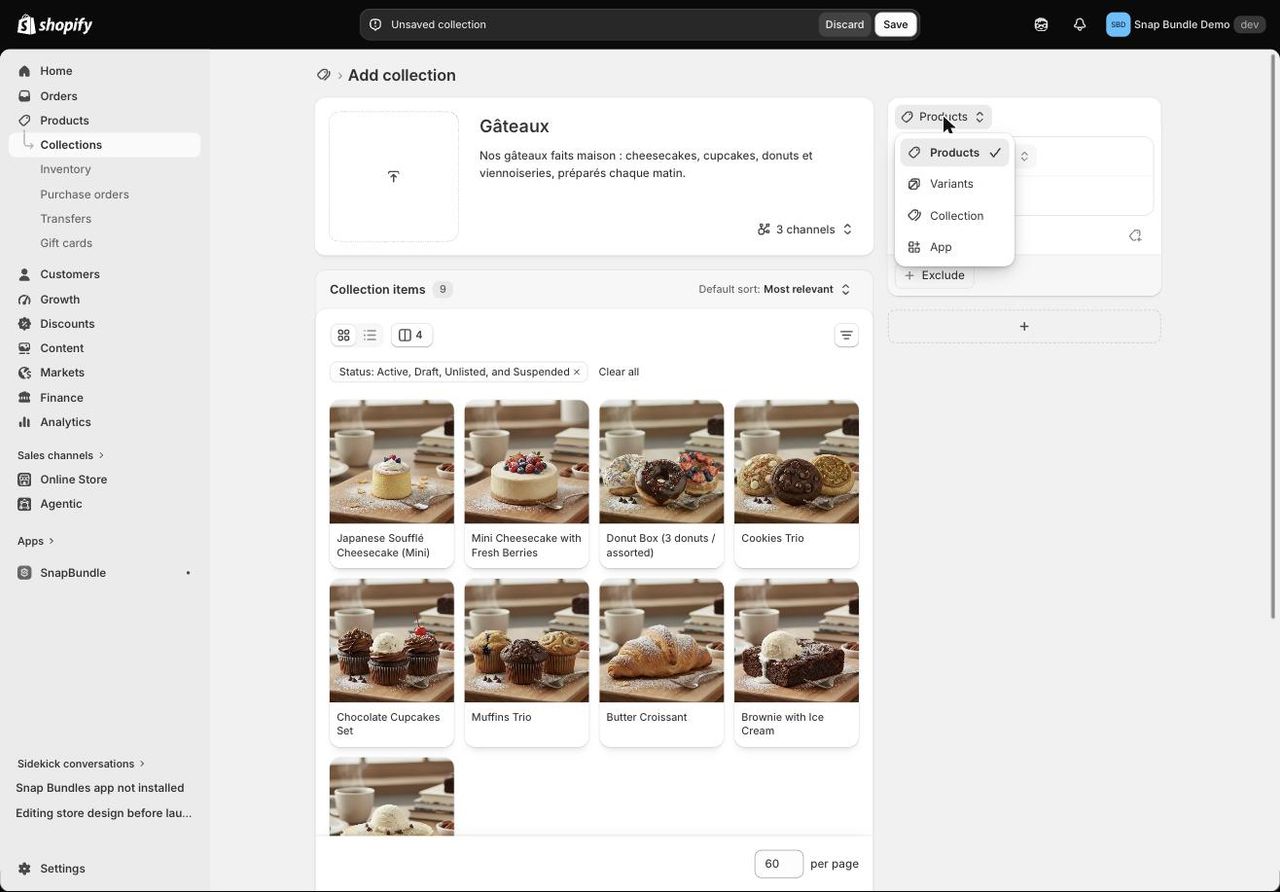
Keep Products for your first collection, then move on to step 5.
Step 5: add conditions or pick products by hand
With conditions (the former automated collection). Click Add condition, then choose an attribute, an operator and a value. In our example, the condition Tag includes cake adds all 9 products tagged "cake" at once. The Collection items preview updates live, so you can see right away whether a condition is too broad or too strict.
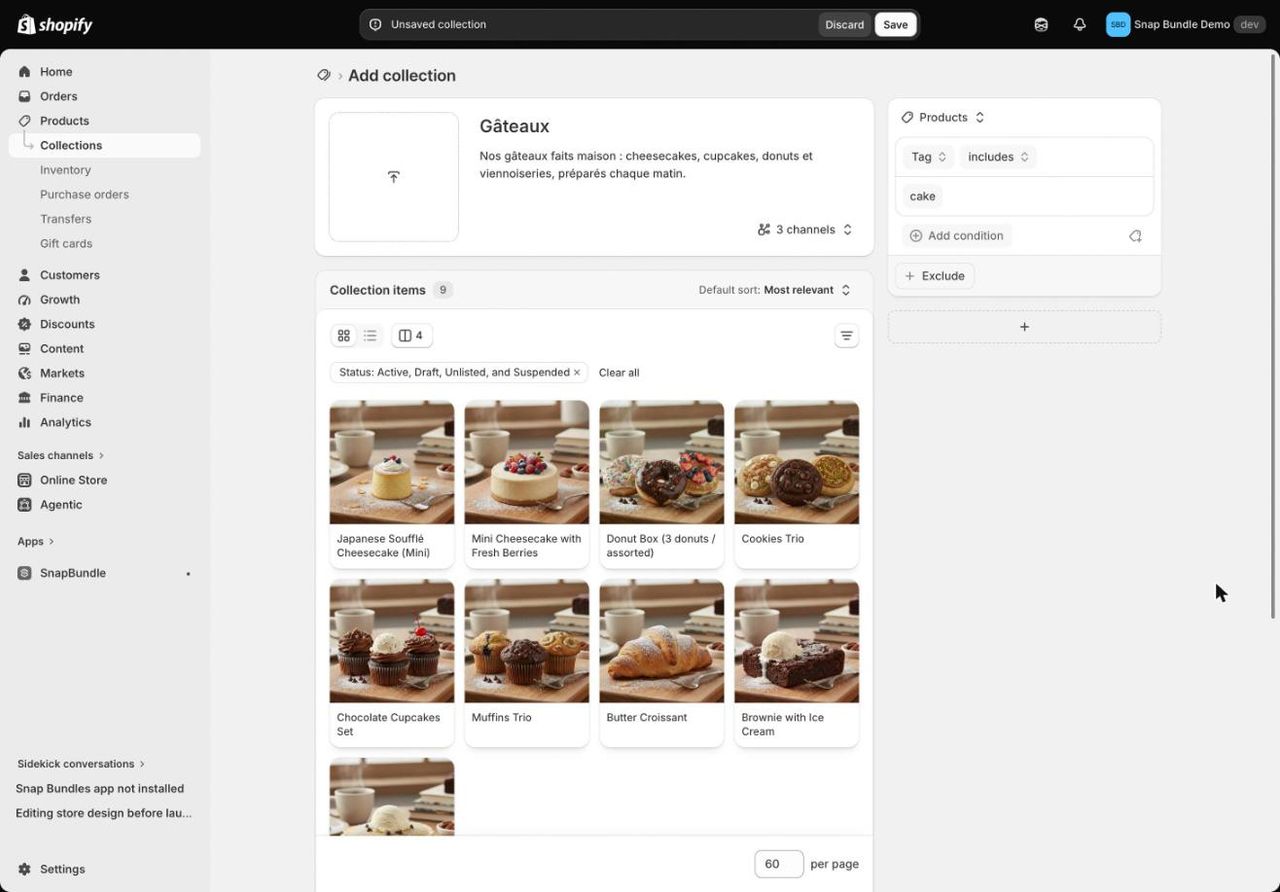
You can filter on product category, price, compare-at price, inventory stock, status, tag, title, type, variant title, vendor and weight, among others. Some ready-to-use conditions:
Collection | Condition |
|---|---|
Sale | Compare-at price is set |
Gifts under $20 | Price is less than 20 |
New arrivals | Tag includes "new" |
A brand | Vendor is equal to the brand name |
In stock | Inventory stock is greater than 0 |
By hand (the former manual collection). Click the icon to the right of Add condition to open the Select products to include window. Search for your products, tick them, then confirm. Conditions and hand-picked products can live in the same source.
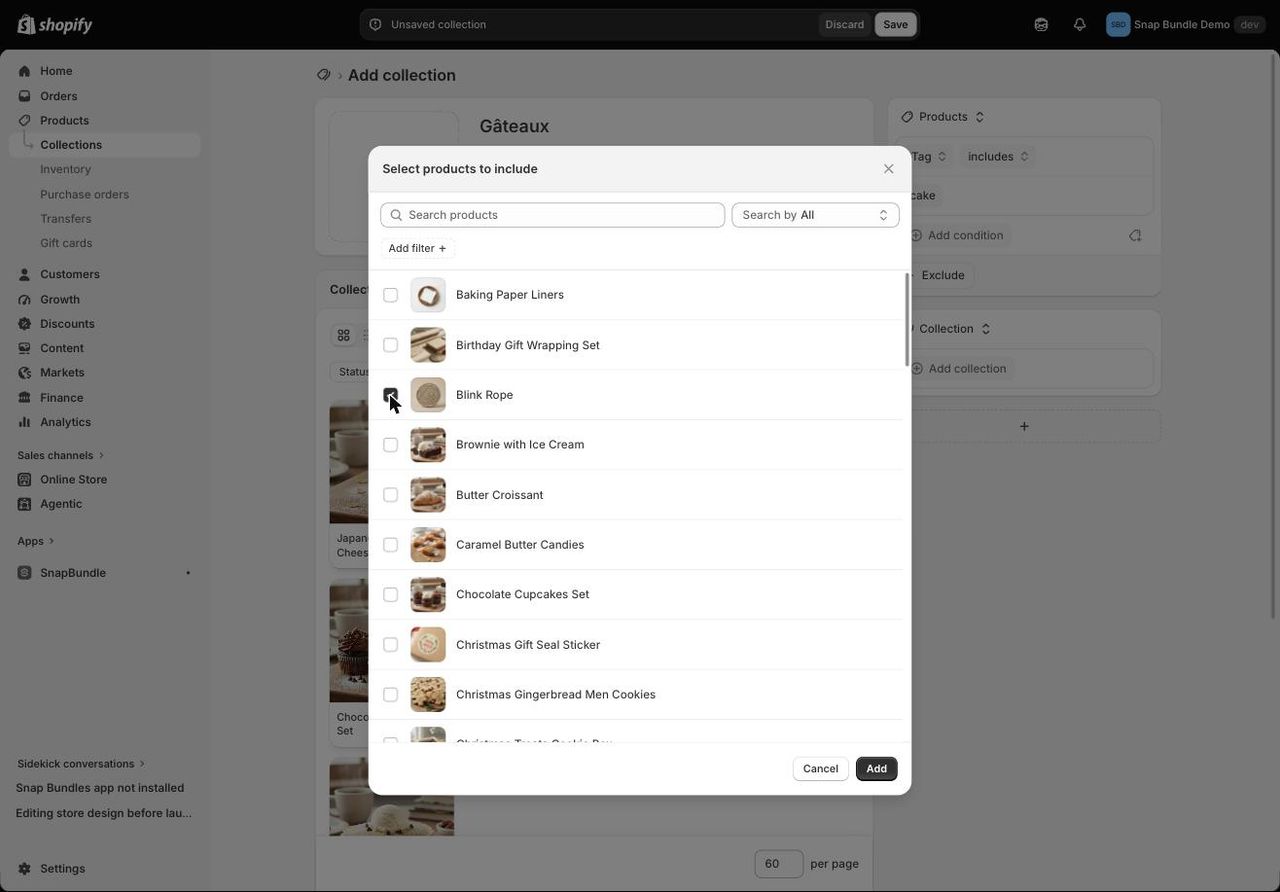
Lots of products to add? Use the product list instead: go to Products, select the products you want, then choose Add to collection(s) from the bulk actions menu.
Exclude products. The Exclude button removes products from the collection even though they meet your conditions, such as a cake you only sell in summer.
Combine several sources. The + button below the panel adds another source. A collection can bring together the products tagged "cake" and those from another collection.
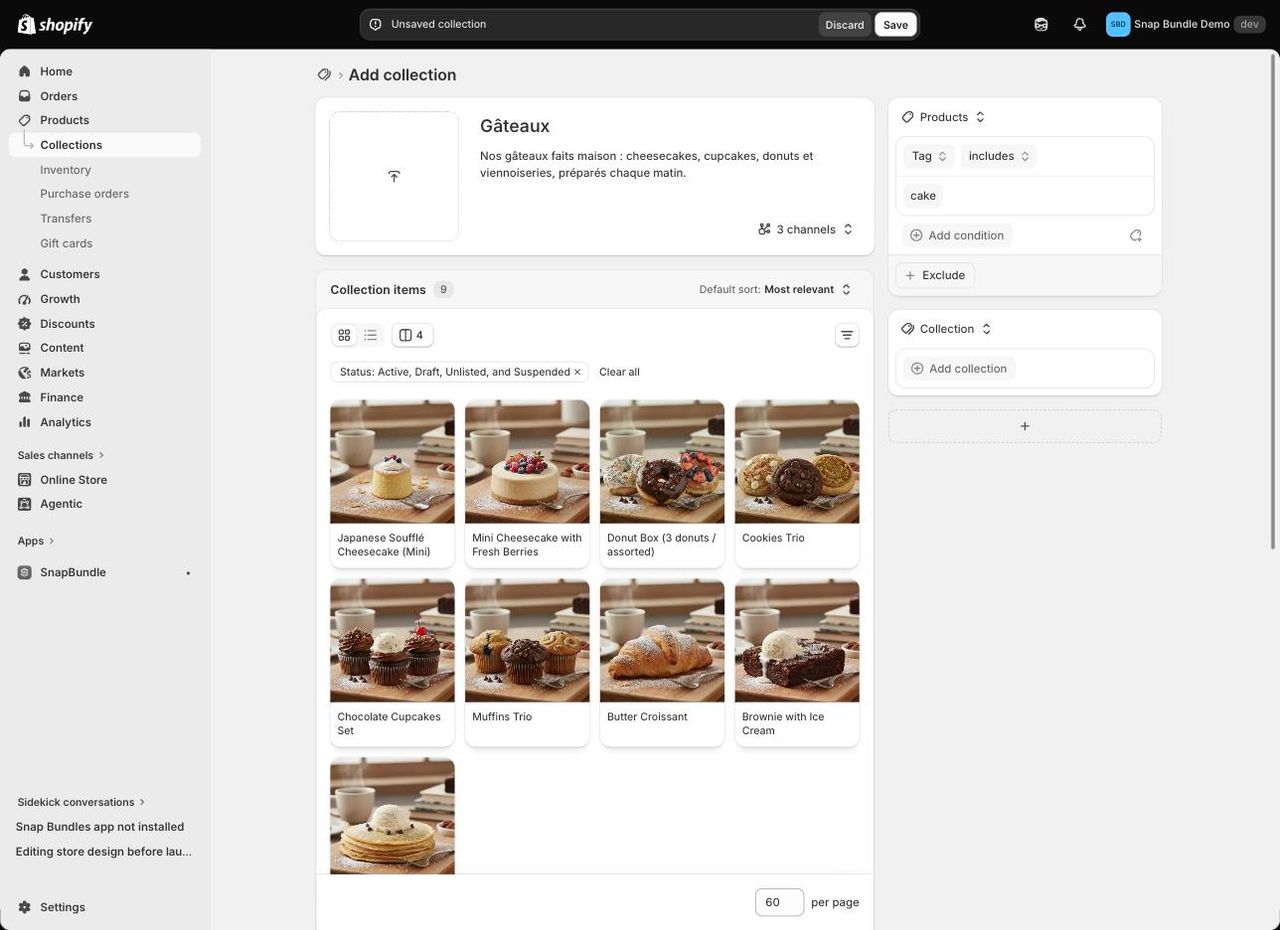
Step 6: set the product order
To the right of the Collection items heading, the Default sort menu sets the order on your store: relevance, best selling, alphabetical, price, date added, or Manually to put your hero products first with drag and drop.
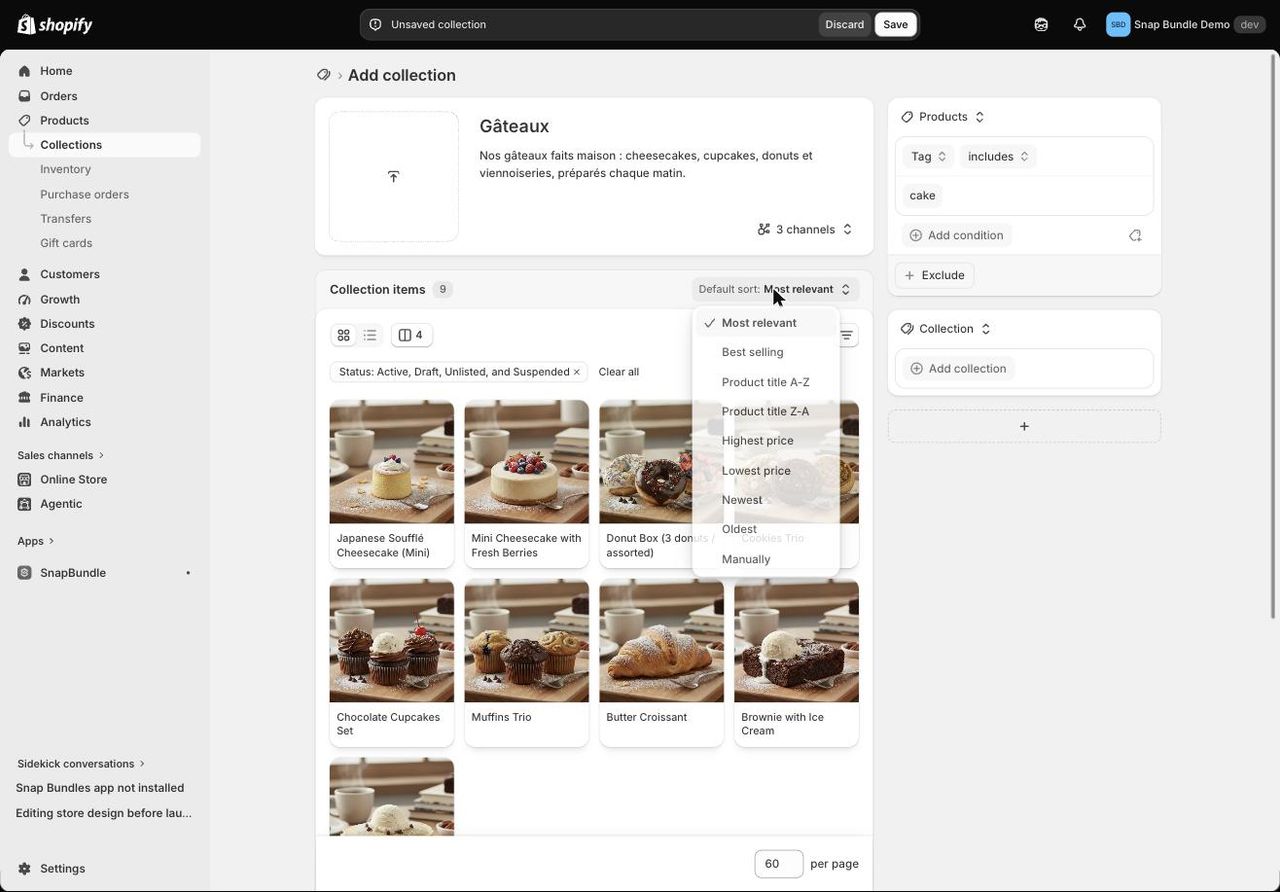
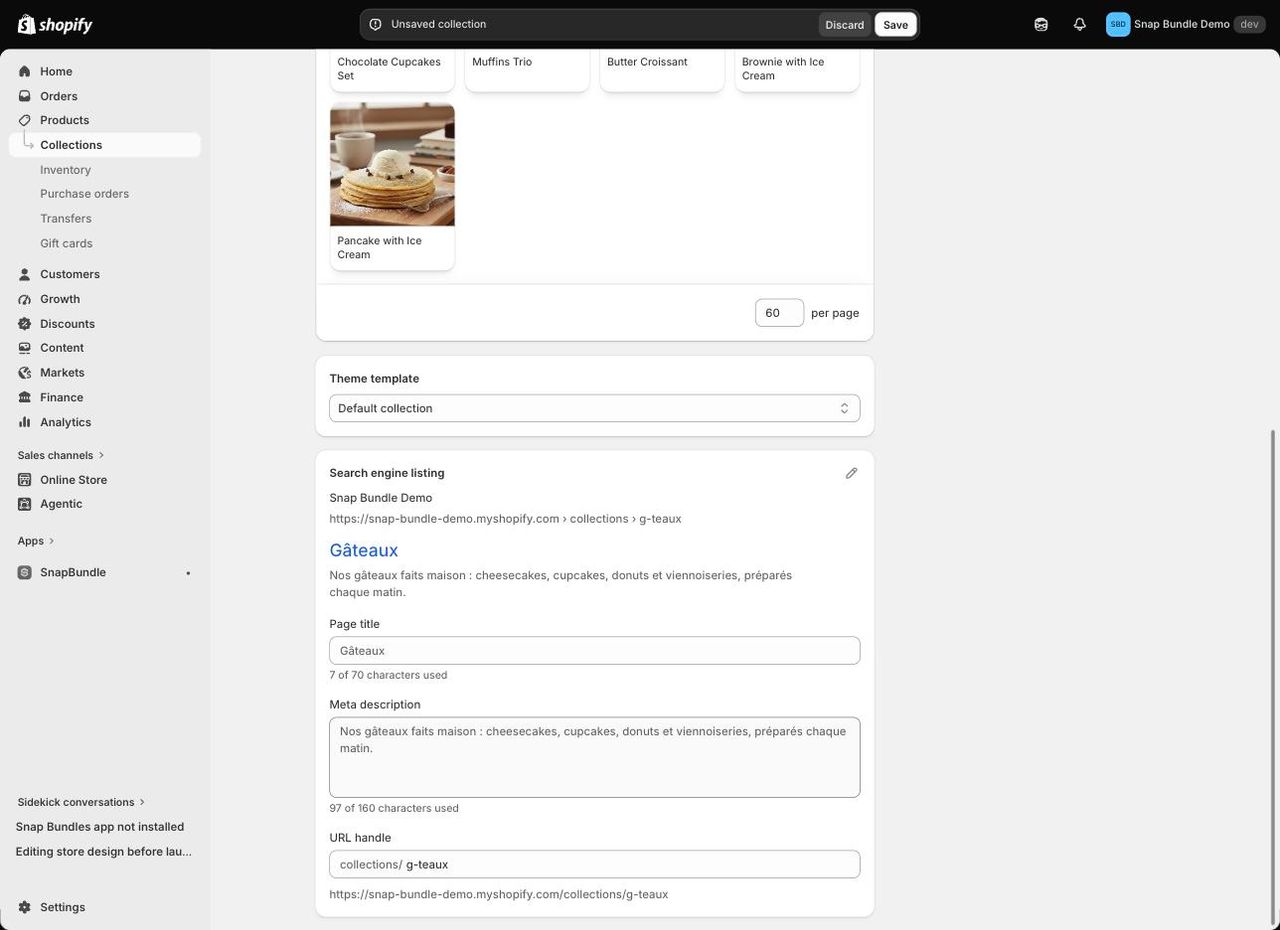
Step 7: check sales channels, template and search listing
Before saving, go through the last settings:
- Sales channels. The 3 channels button under the description lists where the collection is published: Online Store, Shop and Point of Sale. Without Online Store, the collection doesn't show on your site.
- Theme template: at the bottom of the form, keep the default template or pick one built for a specific kind of collection.
- Search engine listing: click the pencil icon to set the page title, meta description and URL handle. We cover these fields below.
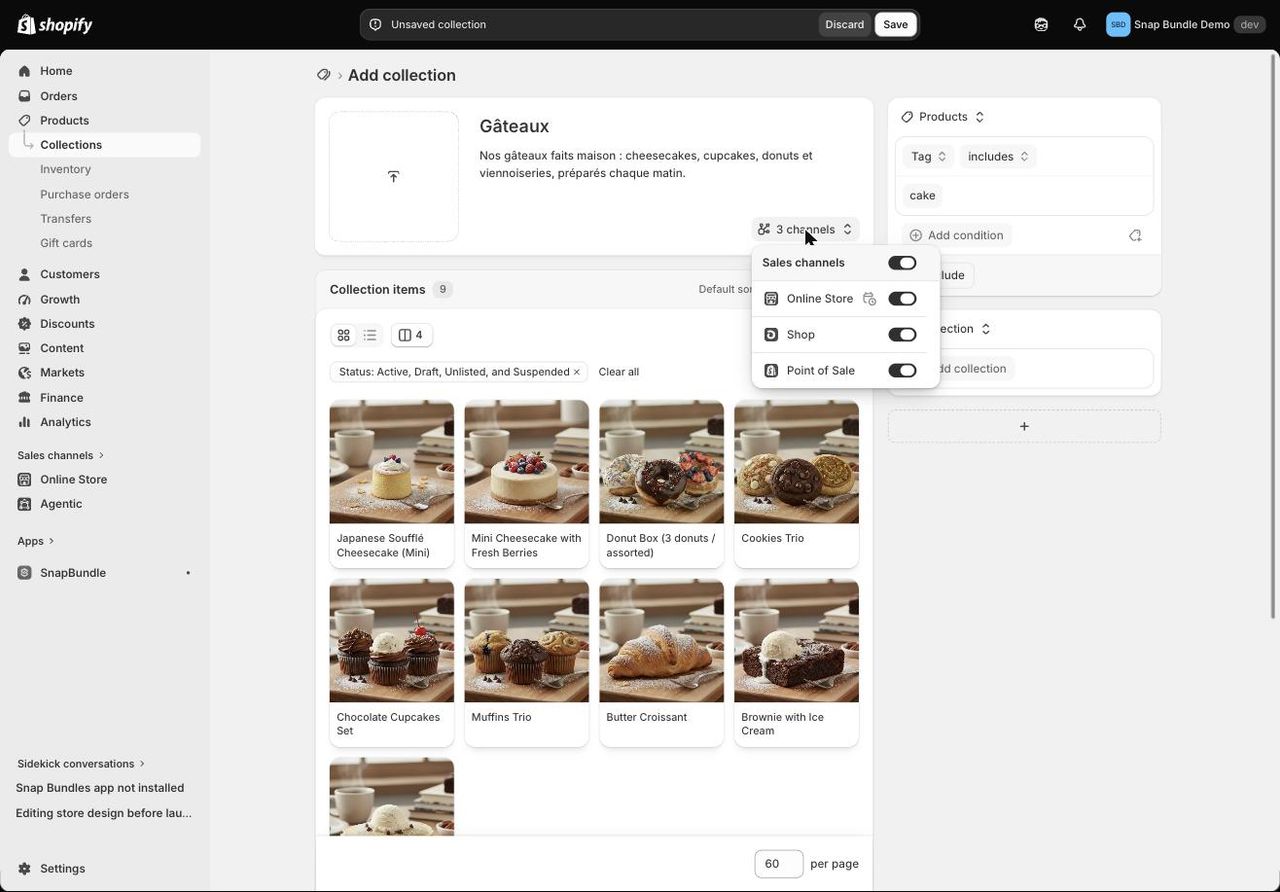
Check the suggested URL. For "Gâteaux", Shopify generated collections/g-teaux: the accented "â" was dropped. Fix it by hand to gateaux before saving. It's easier to read for shoppers and for Google. The same happens with any accented or non-Latin title.
Step 8: save and add the collection to your menu
Click Save. Your collection now lives at /collections/your-collection, but nothing links to it yet.
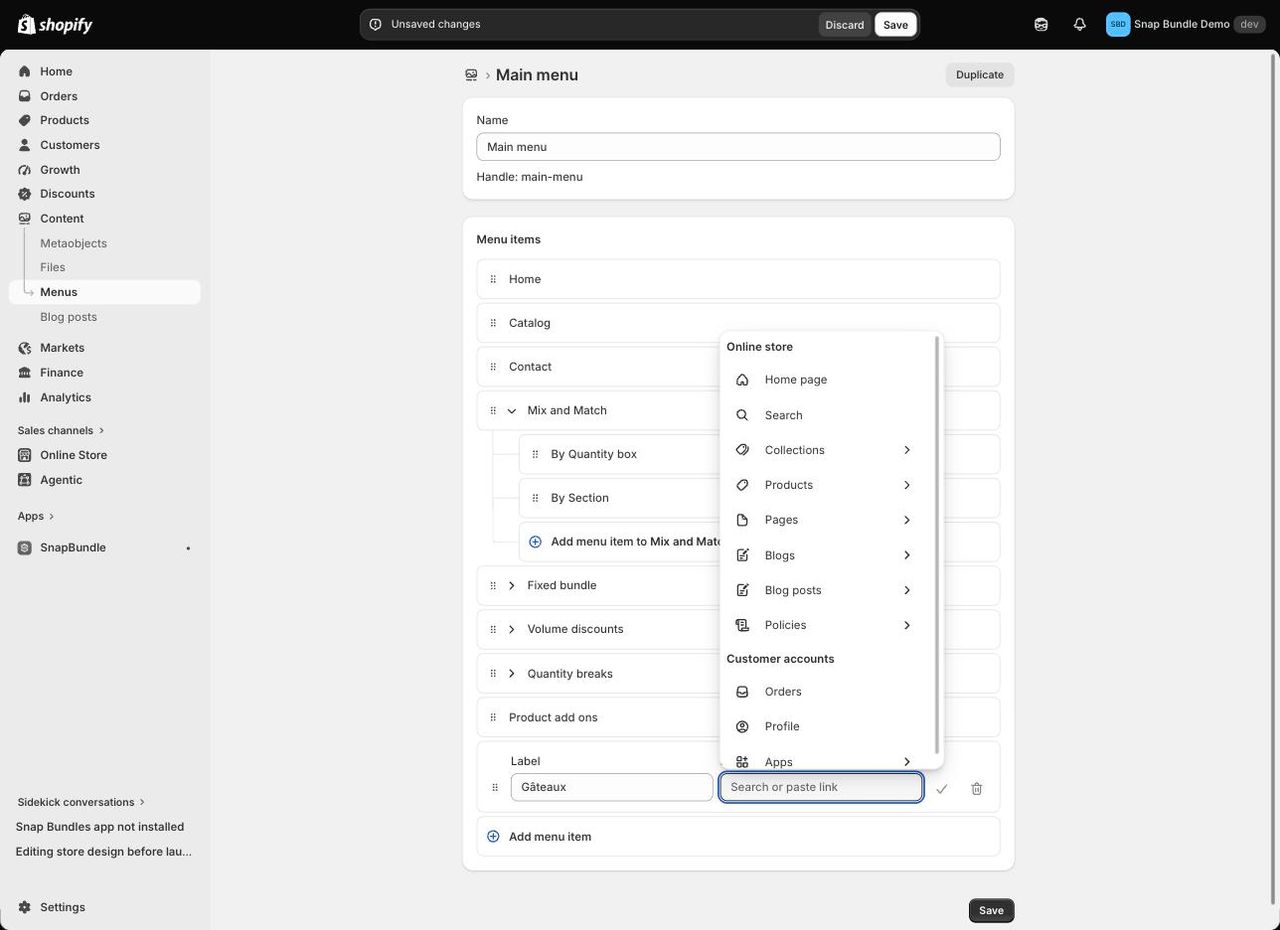
To show it in your navigation, go to Content > Menus and open the Main menu. Click Add menu item: a row appears with a Label and a Link. Type the label, click the Link field, choose Collections, then your collection. Confirm the row, then save the menu.
How to create a sub-collection in Shopify
The Shopify admin has no "Create sub-collection" button: all collections sit at the same level. To build a hierarchy like Women > Dresses > Summer dresses, two methods work together: the menu for navigation, and a parent collection for the products.
Method 1: nest your collections in the menu
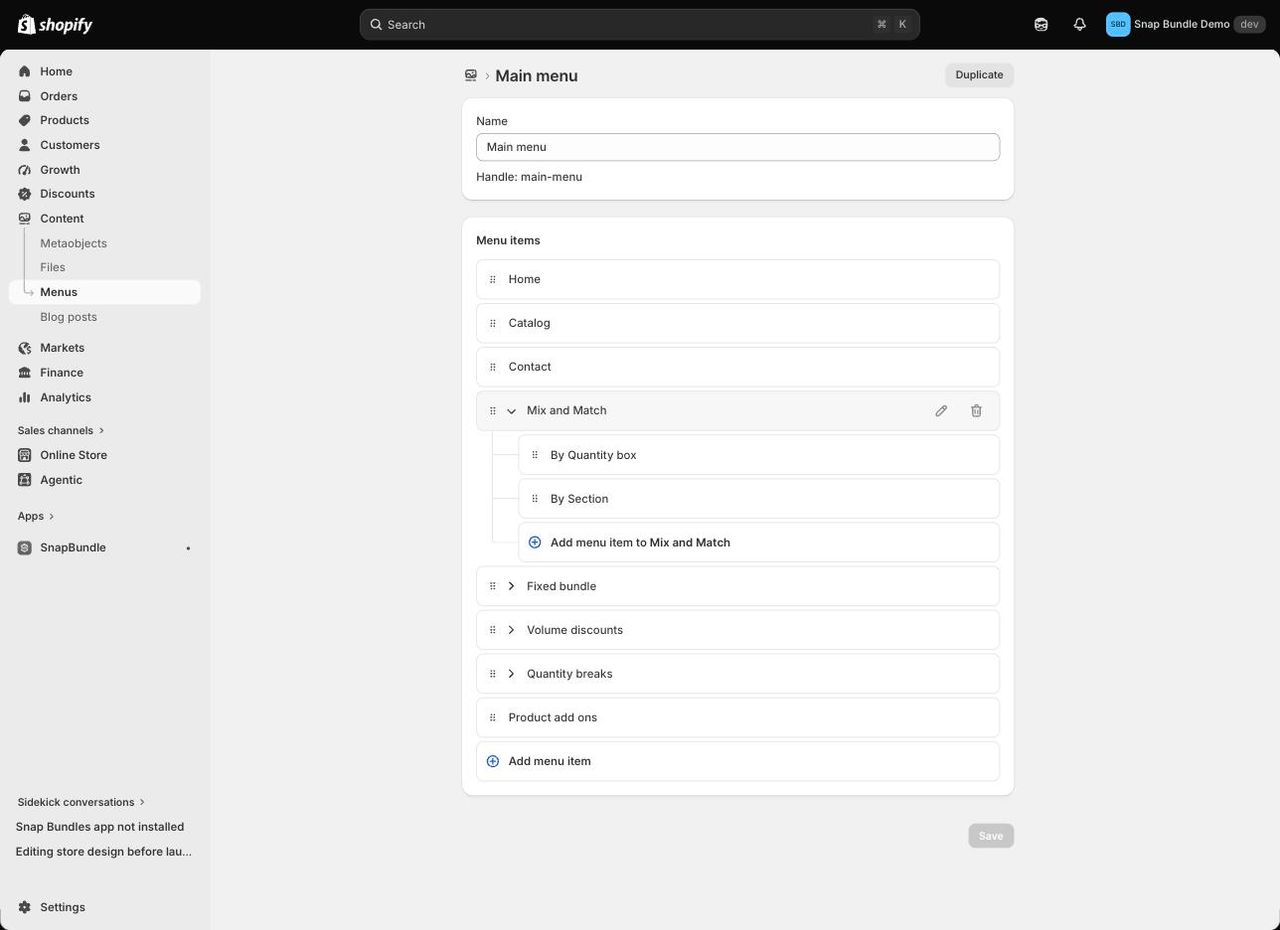
This is the most common method. First create each collection separately (Women, Dresses, Tops), then open Content > Menus > Main menu. Add the "Women" item, expand it, then click Add menu item to Women to create "Dresses" and "Tops" under it. You can also drag an existing item under another one.
Your theme then shows them in a dropdown or mega menu. Shopify menus support up to three levels.
Method 2: a parent collection that groups the others
The menu handles navigation, but the "Women" page needs products too. Two ways to get there:
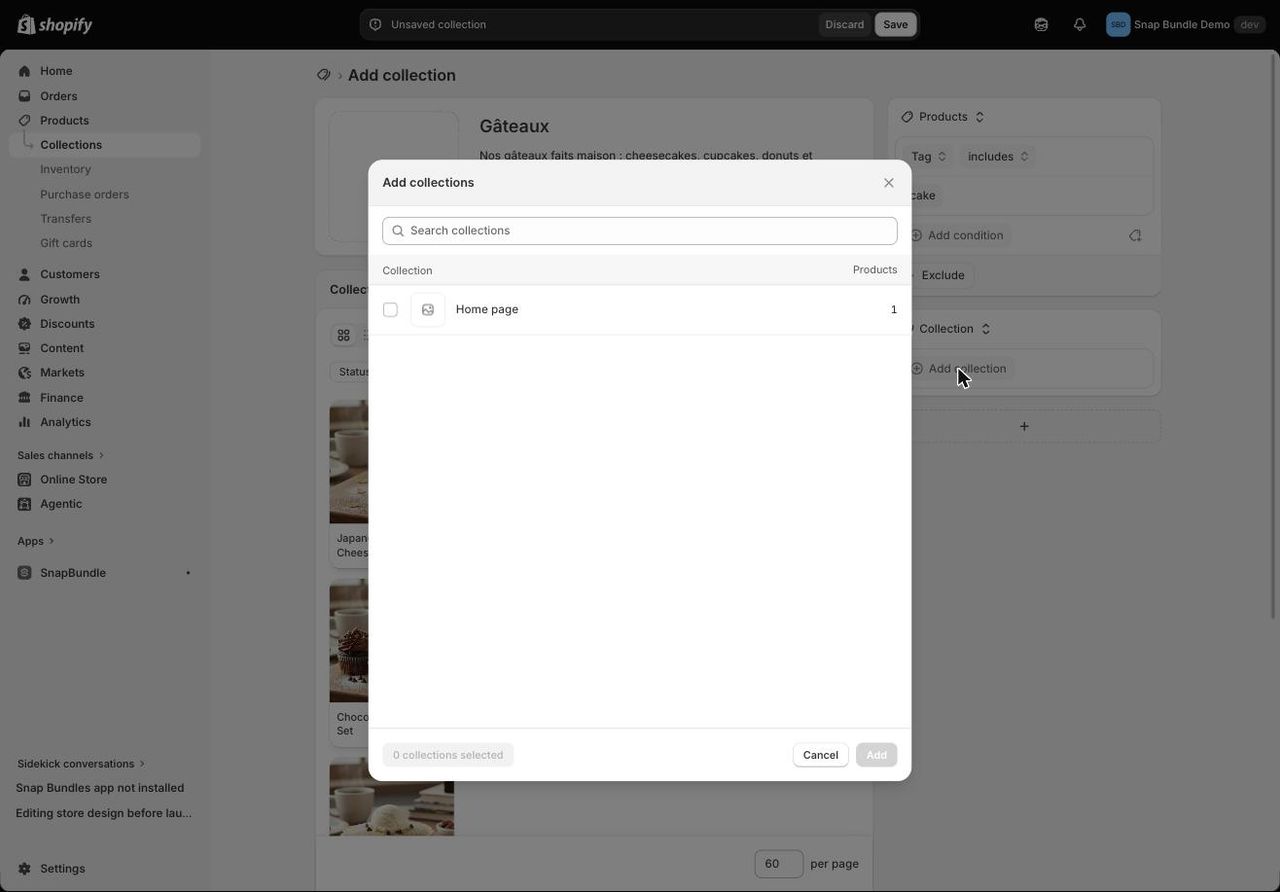
- With a Collection source. In the sources panel of "Women", choose the Collection type, click Add collection and tick "Dresses" and "Tops". The parent collection then shows all their products and follows their changes. Shopify limits this to one level (a sub-collection can't include another collection itself) and to 50 such collections per store.
- With tags. If your admin doesn't show sources yet, make "Women" an automated collection with the condition Product tag is equal to "women", and add that tag to every product in Dresses and Tops.
Show sub-collections on the parent page
To display sub-collections as tiles on the "Women" page, open the theme editor (Online Store > Themes > Customize), pick the collection template, add a Collection list section and select "Dresses" and "Tops". If all your collections share that template, create a dedicated template for parent collections so the tiles don't show everywhere.
How to optimize a Shopify collection page for SEO
A collection page often ranks better than a product page for broad searches like "women's summer dresses". A few settings go a long way:
- A title that contains the keyword. "Women's summer dresses" rather than "Summer vibes".
- A short page title and a meta description of 160 characters max, in the Search engine listing section. Shopify's counter allows 70 characters for the title, but Google often cuts it around 60.
- A short, readable URL, e.g.
/collections/summer-dresses. If you change it after launch, tick the redirect option so the old URL keeps its traffic. - A unique description. Don't copy another collection's text. 100 to 300 words, placed below the product grid if your theme allows it, add context without pushing products down.
- Alt text on the collection image.
- Internal links. Link the collection from the menu, the home page and your blog posts.
- No empty or near-empty collections. Conditions so strict that only one or two products match make a thin page in Google's eyes. Merge the collection with another or loosen its conditions.
Use your collections to sell bundles with Snap Bundle
Well-organized collections aren't just for navigation: they also help you sell several products at once. That's where Snap Bundle(opens in a new tab) comes in, our bundle and volume discount app. It's rated 4.9/5 on the Shopify App Store and carries the Built for Shopify badge.
With a Mix-n-match bundle, you create a box shoppers fill themselves, like "Any 3 cakes for $25". Each section of the box pulls from products or from a collection: instead of picking products one by one, you choose the "Cakes" collection as a section of the box. The Bundle builder Page then gives the box its own page on your store.
The collections you just created become the base of your bundle offers, which lifts average order value. For the full walkthrough, read our guide to building a build-a-box on Shopify. New to bundles? Start with what is a bundle in ecommerce.
Snap Bundle is free while your offers generate less than $500 in revenue a month, then costs $12.99 a month.
Common mistakes when creating a collection
- The collection doesn't show on the store. Check it's published to the Online Store channel and that a menu or home page link points to it.
- Products are missing from the collection. A draft, archived or unpublished product isn't visible, even if it belongs to the collection. Also check it isn't removed by an exclusion.
- The collection is empty. Check your tag spelling and the Collection items preview before saving: it shows right away what your conditions return.
- A URL mangled by accents. "Gâteaux" becomes
g-teauxunless you fix the URL handle. Set it before launch. - Managing everything by hand. Picking 300 products one by one quickly becomes impossible to keep up to date. Use conditions wherever you can.
FAQ
How do I create a collection in Shopify?
In your Shopify admin, go to Products > Collections and click Add collection. Add a title and a description, then choose products in the right-hand panel: with conditions (Add condition), by hand, or both. Save, then add the collection to your menu from Content > Menus.
How do I create a sub-collection in Shopify?
Shopify has no dedicated button. Create each collection separately, then nest them in your menu (Content > Menus) under the parent. To make the parent collection also contain its sub-collections' products, give it a Collection source, or use a shared tag in an automated collection.
How many collections can a Shopify store have?
Up to 100,000 collections per store, including 5,000 condition-based collections, according to Shopify's developer documentation.
Can a product be in multiple collections?
Yes. A product can belong to as many collections as you like, whether it gets in through a condition or by hand.
Can I turn a manual collection into an automated one?
With the new collections model, yes: open the collection and add conditions to its source, and the hand-picked products stay in place. In the classic interface, no: create a new automated collection and swap it into your menu.
How do I change the order of products in a collection?
Open the collection and use the Default sort menu to the right of Collection items: best selling, alphabetical, price, date, or Manually to arrange products with drag and drop.
Creating a collection in Shopify takes a few minutes. What matters most is choosing where its products come from and planning your hierarchy from the start. Once your collections are in place, put them to work: a Snap Bundle Mix-n-match bundle built on a collection is often the simplest way to grow the value of every order.

Keep reading

Average Order Value: Formula, Calculation Examples and 12 Ways to Increase It
Average order value is revenue divided by orders. The formula with worked examples, where Shopify shows AOV, and 12 ways to raise it, from tiered discounts to post-purchase upsells.

Break-Even ROAS: Formula, Calculator and How to Lower It
Break-even ROAS is 1 ÷ your contribution margin. The formula, which costs to include, how to set it in Google, Meta, TikTok and Pinterest Ads, and how bundles lower it.

How to Create Bundles on Shopify With the Free Shopify Bundles App
Shopify Bundles, Shopify’s free app, creates fixed bundles and multipacks. Setup, steps, limits, and when Snap Bundle fits better.