How to easily create Shopify mix and match bundles (in 2026)

Summarize this article with AI


Mix and match bundles let shoppers pick their own products. The 3 formats, what Shopify can do alone, and how to set each one up with Snap Bundle.
A mix and match bundle lets shoppers pick their own products from a selection you choose, and rewards them with a discount once the bundle is complete. "Any 3 candles for $45", "2 items 10% off, 3 items 15% off" or "1 cleanser + 2 serums" are all mix and match offers.
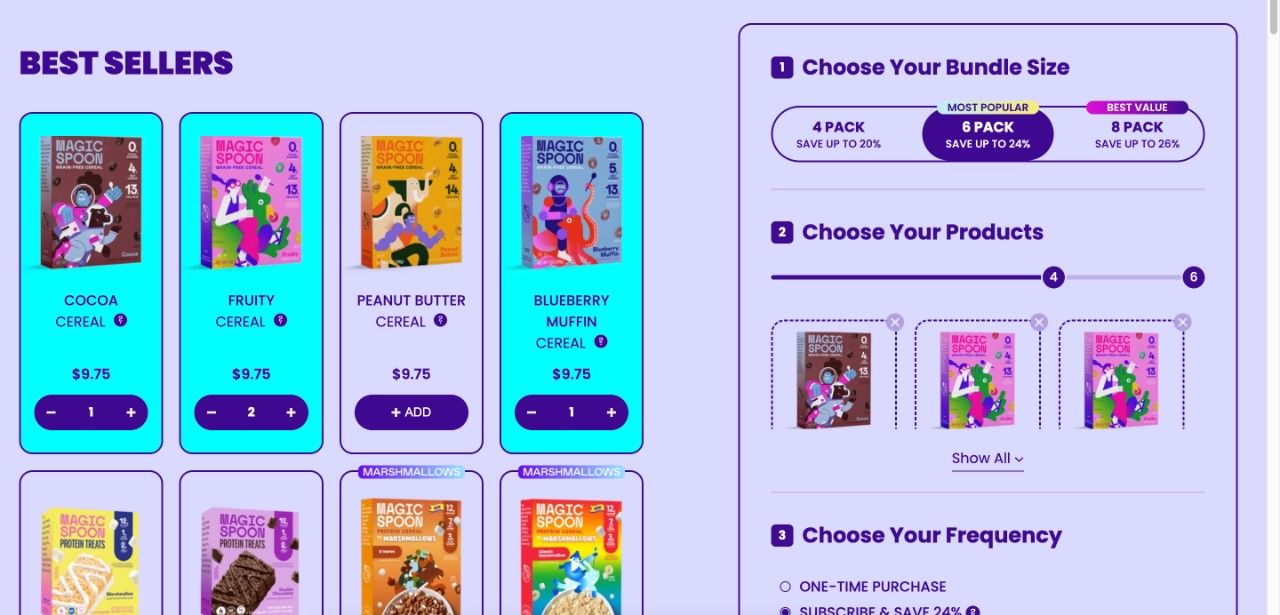
Here is one live. Magic Spoon, the high-protein cereal brand, sells a Custom Mixed Bundle(opens in a new tab) on its Shopify store: shoppers choose a 4, 6 or 8 pack, fill it with any flavors, and save up to 20%, 24% or 26% depending on the size. The bigger the box, the bigger the discount: that's the mix and match by quantity box format covered below.
Shopify doesn't build these out of the box. Below we cover the three mix and match formats, when each one makes sense, what Shopify can and can't do alone, and how to set up each format with Snap Bundle, the mix and match bundle app we build at Trafik Plus.
Disclosure: Trafik Plus is a Shopify agency. We develop Shopify themes, including our own theme Pops, and Shopify apps, including Snap Bundle. We use it as the example because we know it inside out, and we point out where Shopify's native tools are enough.
What is a mix and match bundle?
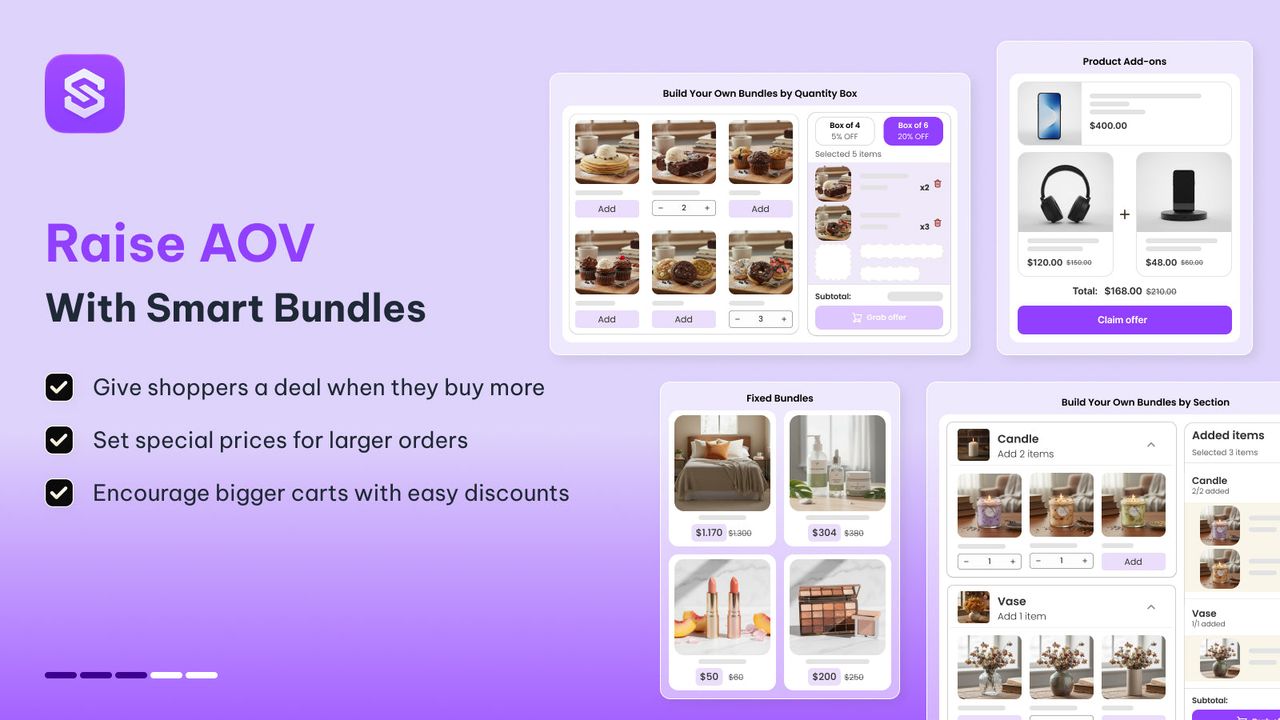
A mix and match bundle (also called a customizable bundle or build your own bundle) is a bundle where the shopper chooses the items, not you. You set the pool of eligible products and the rule, the shopper fills the bundle, and the discount applies when the rule is met.
It differs from a fixed bundle, where you pre-select the exact products (a starter kit with a shampoo, a conditioner and a mask). Fixed bundles are simple to sell; mix and match bundles convert better when your customers have strong preferences: flavors, scents, sizes, colors. For the wider picture, see our guide to what bundle products are in ecommerce.
Mix and match works well for:
- Food and drinks: any 6 bottles, a 12-bar variety box, coffee sampler packs.
- Beauty and skincare: pick a cleanser, a serum and a moisturizer for one price.
- Fashion and accessories: any 3 t-shirts, socks or underwear multipacks in the shopper's colors.
- Home and gifts: candles, mugs or gift boxes the customer fills with their picks.
The 3 mix and match formats (and when to use each)
Most mix and match offers fall into three formats. They trigger the discount differently, so pick the format from what you want the shopper to do.
Format | How the discount triggers | Best for | Example |
|---|---|---|---|
Mix and match by section | The shopper picks a set number of items from each section | Routines, kits, gift boxes with a clear structure | 1 cleanser + 2 serums + 1 moisturizer for $79 |
Mix and match by quantity box | The shopper adds any products from the pool; the bigger the box, the bigger the discount | Variety packs, flavors, multipacks | 2 items 10% off, 4 items 15% off, 6 items 20% off |
Mix and match volume discount | The quantity is the sum of all chosen products, shown as quantity breaks on the product page | Consumables and catalog-wide "buy more, save more" | Buy 5 from the range, get 10% off: 3 of A and 2 of B counts |
Mix and match by section
You split the bundle into sections (for example "Pick your cleanser", "Pick 2 serums") and set how many items each section requires. The discount only applies once every section is complete, so you keep control over the structure of the bundle while the shopper keeps the choice inside each section.
In Snap Bundle, this is the Mix-n-match by Section template. Each section takes products or a whole collection, a title, an image, a description and a required number of items. If a shopper adds enough for two full bundles, the discount applies twice.
Mix and match by quantity box
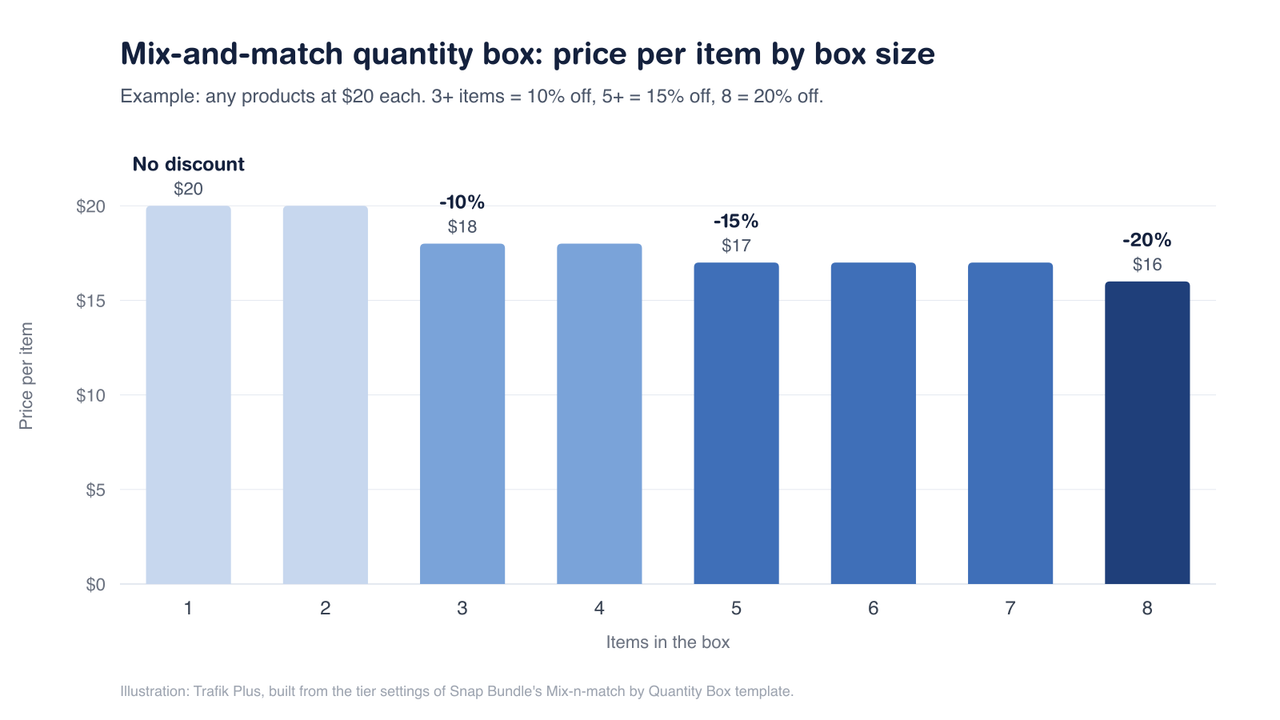
Here there are no sections: the shopper fills a box with any products from your selection, and the discount grows with the box. You create several boxes (say 2, 4 and 6 items), each with its own discount, and the best box the cart qualifies for applies.
In Snap Bundle, this is the Mix-n-match by Quantity Box template. Each box can use a percentage, a fixed bundle price or an amount off, and each box needs a different required quantity.
Mix and match volume discount
The third format lives on the product page instead of in a box: quantity breaks ("Buy 2, save 5%. Buy 5, save 10%") where the count adds up across several products. With a product-based rule the shopper needs 5 of the same product; with a mix and match rule, 3 of product A and 2 of product B also count.
In Snap Bundle, you get it by creating a Volume offer(opens in a new tab) with the Mix-n-match strategy. It's the right pick when you sell consumables and want a "buy more, save more" offer across a range without building a dedicated bundle page. We compare dedicated tools in our list of the best Shopify volume discount apps.
Can you create mix and match bundles on Shopify without an app?
Partly. Shopify's free Shopify Bundles app(opens in a new tab) only creates fixed bundles and multipacks: you choose the products, not the shopper. We walk through it in our guide on how to create bundles on Shopify.
The closest native workaround is an automatic discount with a minimum quantity: "Amount off products", limited to one collection, with a minimum of 3 items. Any 3 products from that collection get the discount, which is a basic mix and match. The limits show up fast:
- No widget: nothing on the product page tells shoppers about the offer or helps them fill the box.
- No sections: you can't require "1 from this group and 2 from that one".
- No bundle price: "any 3 for $45" needs a fixed total, which native discounts don't set across mixed products.
- Tiers are awkward: each tier is a separate discount, and you have to manage how they combine(opens in a new tab).
Feature | Shopify alone | Snap Bundle |
|---|---|---|
Shopper picks the products | ✅ Yes, with a minimum-quantity discount | ✅ Yes |
Sections with required items | ❌ No | ✅ Yes |
Tiered boxes (2, 4, 6 items) | ❌ No, one discount per tier | ✅ Yes, in one offer |
Fixed bundle price ("any 3 for $45") | ❌ No | ✅ Yes |
Bundle widget on product page | ❌ No | ✅ Yes, vertical or horizontal |
Dedicated bundle builder page | ❌ No | ✅ Yes |
Countdown timer and schedule | ❌ No timer | ✅ Yes |
Price | Free | Free up to $500/month in bundle revenue |
How to create a mix and match bundle with Snap Bundle
The setup takes about ten minutes. Here are the steps for both mix and match templates; the help center guide(opens in a new tab) has the field-by-field details.
Step 1: Install Snap Bundle and turn on the app embed
Install Snap Bundle from the Shopify App Store(opens in a new tab), then turn on its app embed in your theme editor (Online Store > Themes > Customize > App embeds). The widgets don't show on the storefront until the embed is on.
Step 2: Create a Mix-n-match bundle and pick a template
From the app dashboard, click Create bundle on the Mix-n-Match bundle card. Then choose Mix-n-match by Section (structured bundles) or Mix-n-match by Quantity Box (tiered boxes). Give the offer an internal name; shoppers won't see it.
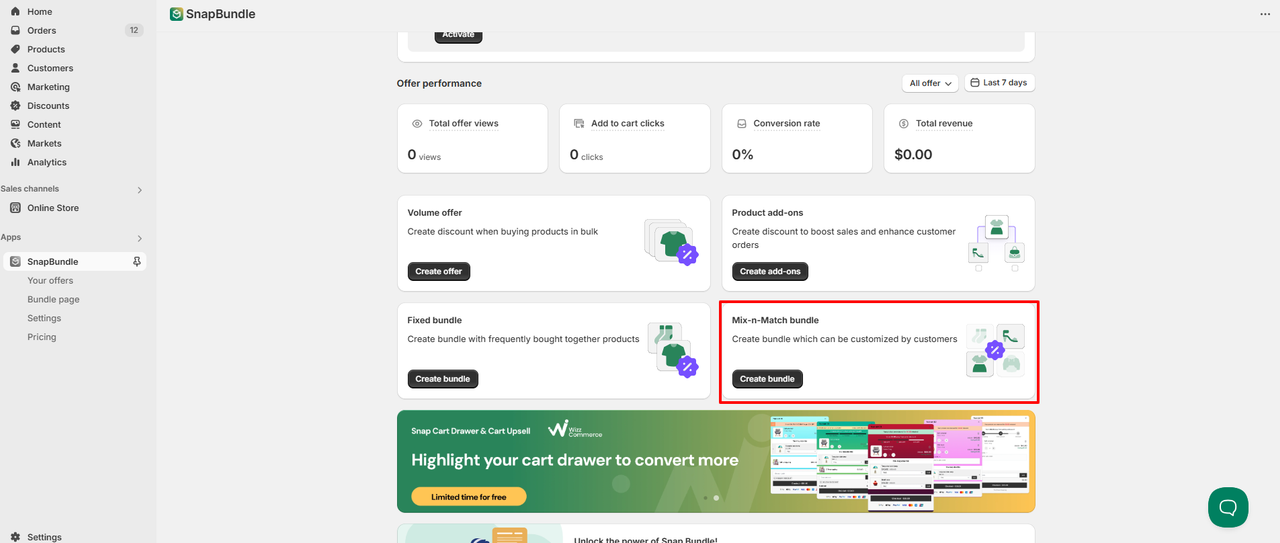
Step 3: Add your sections or boxes
For a section bundle, add one section per group of products. Give each a title, an optional image and description, select products or a collection, and set the required items (for example 2 from "Hot picks!" and 1 from "Over $500").
For a quantity box, add one box per tier and set its required quantity (2, 4, 6…), then select the products or collections shoppers can choose from.
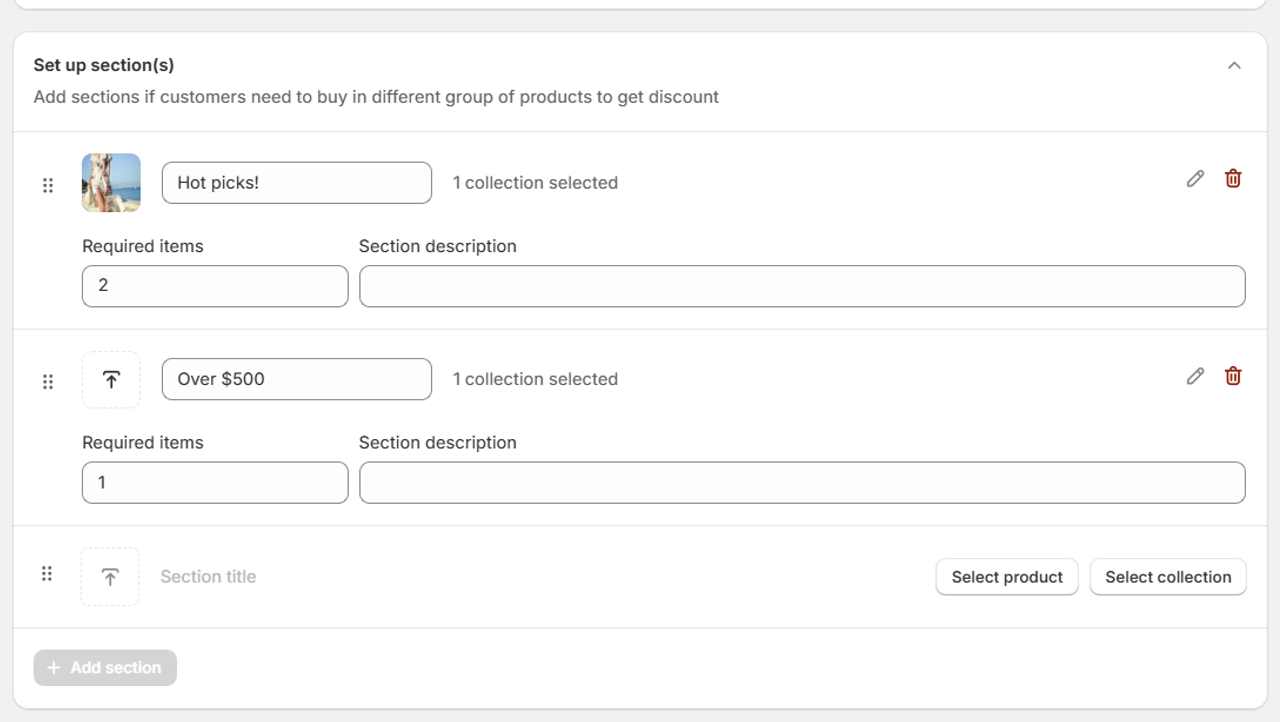
Step 4: Set the discount
Section bundles offer four discount types: Percentage, Amount off, Bundle price (a fixed total such as $45) and No discount. Quantity boxes set a value per box: percentage, fixed price or amount off. Not sure which to pick? Our guide to bundle pricing covers the trade-offs.
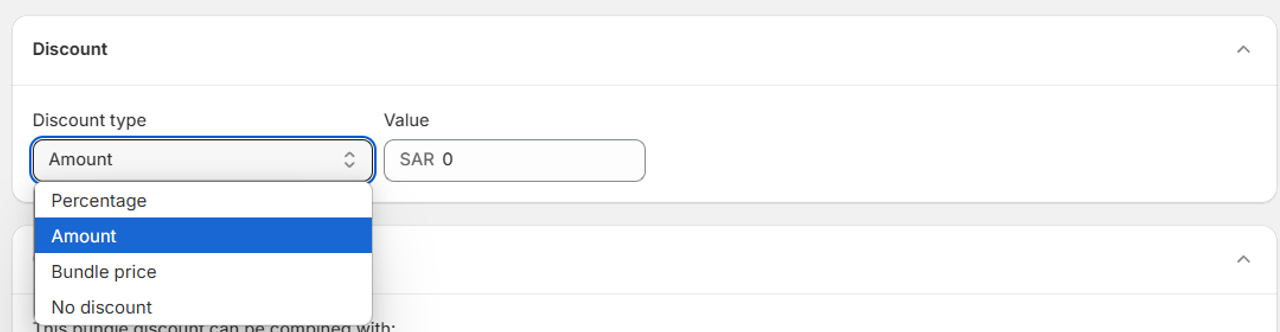
Step 5: Choose where the bundle appears
Pick the vertical layout (made for the product page, in the product info area) or the horizontal layout (home page or product page). On product pages, show the bundle on every product page or only on the pages of products in the bundle.
Want a full page where shoppers build their box step by step? Snap Bundle also creates a Bundle builder Page; we cover it in our guide on how to create a build-a-box on Shopify and in the help center(opens in a new tab).
Step 6: Set combinations, markets and dates, then save
Choose whether the bundle discount can combine with product, order and shipping discounts, restrict it to some markets if needed, and add a start and end date to show a countdown timer. Click Save, then test the bundle on your live store with a real cart before you promote it.
Mix and match pricing ideas that work
The format is half the job; the offer has to be easy to understand in a few seconds. Offers we see work well on Shopify stores:
- "Any 3 for $X" with a bundle price. Round, easy to remember, and it hides the per-item maths.
- Small first step, bigger last step: 10% from 2 items, 15% from 4, 20% from 6. The first tier must be easy to reach.
- Structured routines: 1 cleanser + 1 serum + 1 cream, priced just under the sum of the three.
- Pool of similar prices: keep products at close price points, or use a percentage, so a fixed bundle price doesn't wipe out your margin on the priciest picks.
Set the box size from your current average order value: if most orders contain 2 items, a first tier at 3 items pushes the cart up without feeling out of reach.
How much does Snap Bundle cost?
Snap Bundle is free until your bundles generate $500 in revenue a month, with every feature included. After that, the Essential plan costs $12.99/month with no revenue cap. Mix and match, fixed bundles, volume offers and add-ons are all in the same plan. To compare it with other apps, see our list of the best Shopify bundle apps.
Mix and match best practices
- Show progress: tell shoppers how many items are left before the discount ("Add 1 more to save 15%").
- Limit the choice: 8 to 20 eligible products per section is plenty. Too many options slows the decision.
- Keep stock in check: remove sold-out products from the pool, or the box gets stuck halfway.
- Write the rule in the title: "Pick any 3, pay $45" beats "Mix & Match" alone.
- Check discount stacking: decide whether codes and free shipping can combine with the bundle before launch.
- Measure it: track bundle revenue and conversion in the app's analytics, then adjust tiers after a few weeks.
Frequently asked questions
What is a mix and match bundle on Shopify?
A bundle where the shopper picks the products from a selection you set, and gets a discount once the bundle rule is met, for example any 3 items for $45 or 10% off from 2 items.
Can you create mix and match bundles on Shopify without an app?
Only a basic version. An automatic discount with a minimum quantity on one collection gives a discount on any mix of products, but there is no widget, no sections, no bundle price and tiers need separate discounts. Shopify's free Bundles app only creates fixed bundles.
What is the difference between a mix and match bundle and a fixed bundle?
In a fixed bundle you choose the exact products. In a mix and match bundle the shopper chooses them within the rules you set.
Can I offer tiered discounts in a mix and match bundle?
Yes. With Snap Bundle's Mix-n-match by Quantity Box template, each box size gets its own discount, for example 10% off 2 items, 15% off 4 and 20% off 6. The best tier the cart qualifies for applies.
Can a mix and match bundle combine with other Shopify discounts?
Yes, if you allow it. In Snap Bundle you choose whether the bundle discount combines with product, order and shipping discounts.
Is there a free mix and match bundle app for Shopify?
Snap Bundle is free with all features until your bundles generate $500 a month, then $12.99/month with no cap.

Keep reading

How to Create Bundles on Shopify With the Free Shopify Bundles App
Shopify Bundles, Shopify’s free app, creates fixed bundles and multipacks. Setup, steps, limits, and when Snap Bundle fits better.

Snap Bundle vs BOGOS: The BOGOS Alternative for Volume Discounts & Quantity Breaks (2026)
Snap Bundle vs BOGOS compared on pricing, order caps, bundle types and BOGO offers, with a side-by-side look at both Shopify App Store listings.

10 Best Volume Discount Shopify Apps in 2026 (Tested)
The 10 best Shopify volume discount apps for 2026, compared on free plans, pricing as you grow, and features, from Snap Bundle to Kaching and Fast Bundle.