
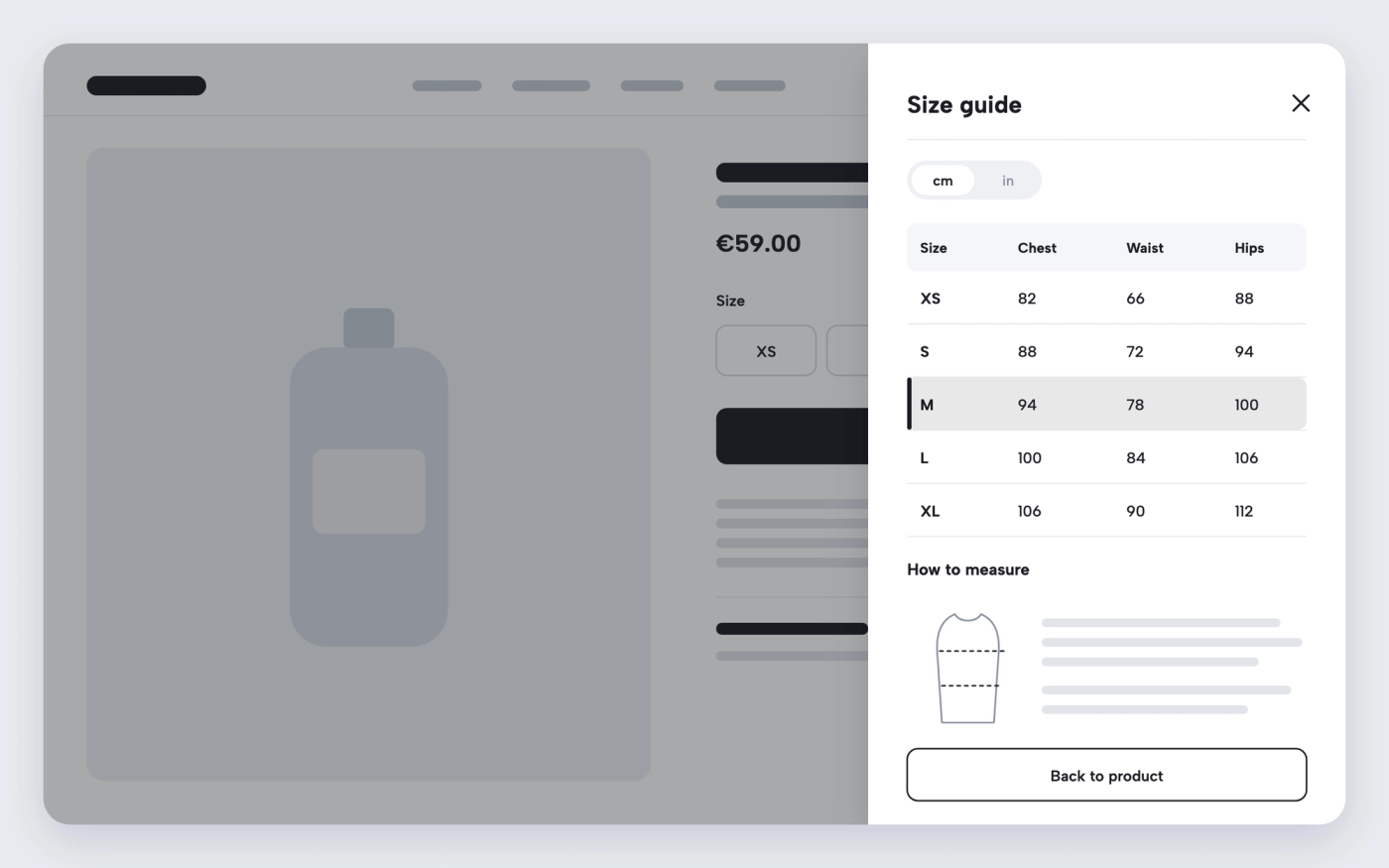
Shopify size chart popup on the product page
Open a size guide in a popup or side drawer from the product page, without a size chart app.
Available in
The problem
Shoppers who are unsure of their size either leave the product page to look for a size page, or order two sizes and send one back. A size chart app adds a monthly fee and its own widget for what is often one table.
The solution
Pops has an Opener block: a button that opens a popup or a side drawer. Place it next to the variant picker, call it “Size guide” and build the content from Pops blocks: a table for the measurements, text, an image showing how to measure. The shopper checks their size without leaving the page.
How it works
-
Add an Opener block
In the theme editor, open the product template and add an Opener block inside the product details, under the variant picker.
-
Choose popup or drawer
Set the opener type to Popup or Drawer and give it a title, such as “Size guide”.
-
Build the size chart
Inside the opener, add a Table block for the measurements, plus text or an image if you need them.
Questions merchants ask
Can I use a different size chart per product type?
Yes. Create one product template per product type, such as tops and shoes, and give each its own size guide.
Can the opener show something other than a size chart?
Yes. The same block can show care instructions, shipping details or a video. It also has a Video type that plays a hosted, YouTube or Vimeo video.
Related features
 Saves €4/month
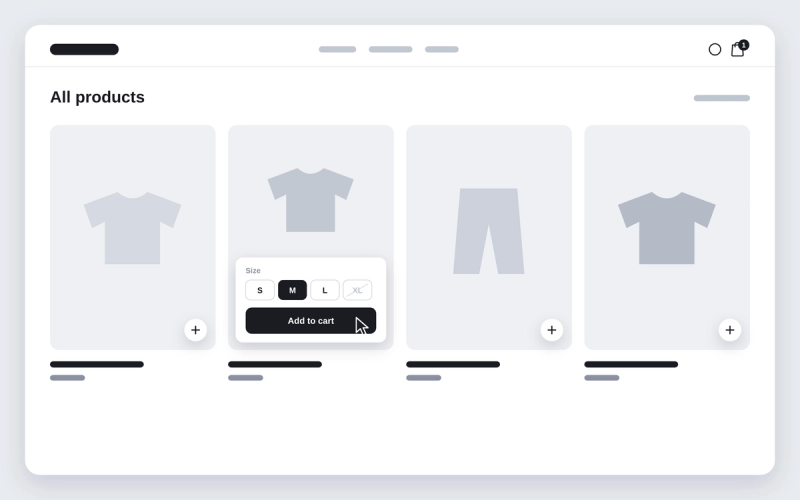
Shopify theme with quick add to cart from collection pages
Add products to the cart from the collection grid, without opening the product page.
 Saves €7/month
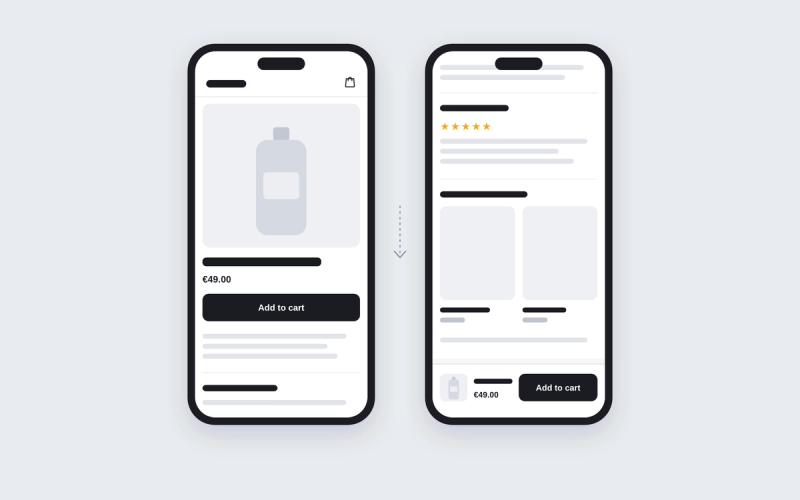
Shopify theme with a sticky add to cart bar
Keep the add-to-cart button on screen while shoppers scroll the product page.
 Saves €7/month
Shopify theme with a countdown timer for sales
A live countdown to the end of a sale, in the announcement bar or anywhere on the page.
 Saves €9/month
Shopify theme with a built-in newsletter popup
Collect email sign-ups with a popup that waits before opening and stays away once dismissed.

Show local pickup availability on Shopify product pages
Tell shoppers which of your locations can have the selected variant ready for pickup.
 Saves €5/month
Shopify theme with a shareable cart link
Let shoppers send their cart as a link that fills someone else’s cart in one click.