
Shopify color swatches on product pages and filters
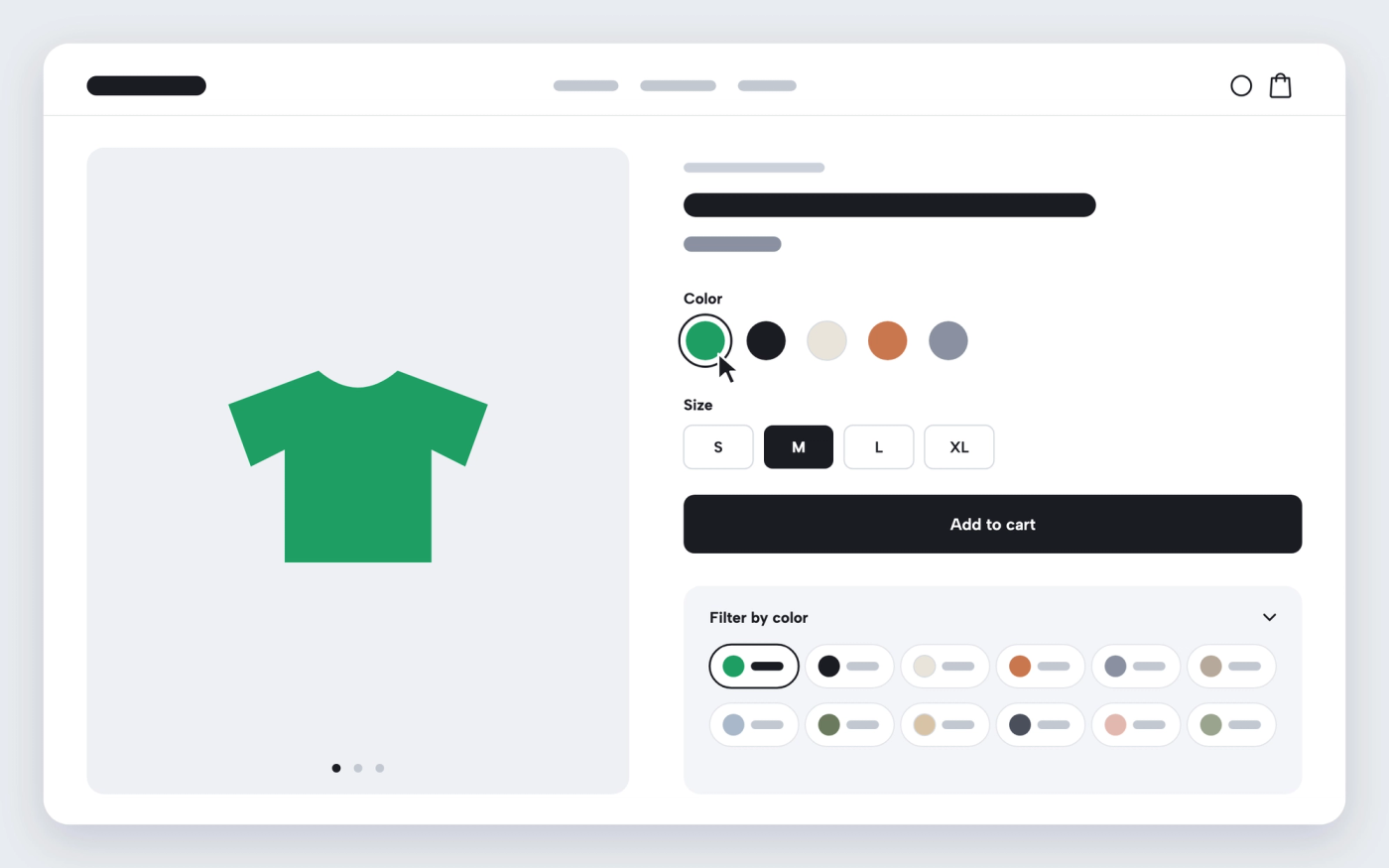
Show each colour as a swatch in the variant picker and in collection filters, using the swatches you set in Shopify.
Available in
The problem
A dropdown that lists “Sage”, “Moss” and “Olive” makes shoppers guess. Many stores install a swatch app, or hard-code colour names in the theme, and keep both in sync by hand.
The solution
How it works
-
Set the colours in Shopify
In Shopify admin, link the product’s Color option to the Color metafield and give each value a colour or an image.
-
Keep swatches on
In the theme editor, select the Variant picker block on the product template and check that Enable swatches is on.
-
Add the filter
In the Search & Discovery app, add a Color filter. Collection pages show it as swatches.
Questions merchants ask
Do I need a swatch app?
No. The theme uses the swatches stored in Shopify, so you set each colour once.
Can a swatch show a pattern instead of a flat colour?
Yes. Give the option value an image, such as a fabric close-up, instead of a colour.
Do swatches show on product cards?
No. They show in the variant picker on the product page and in the collection filters.
Related features
 Saves €4/month
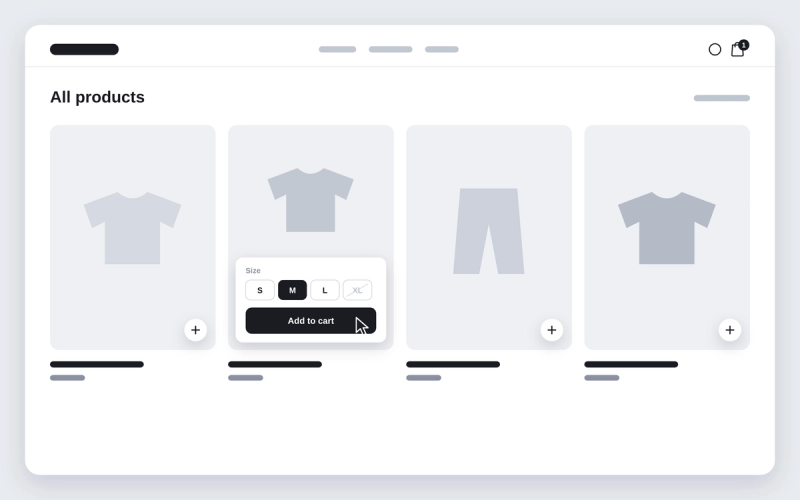
Shopify theme with quick add to cart from collection pages
Add products to the cart from the collection grid, without opening the product page.
 Saves €7/month
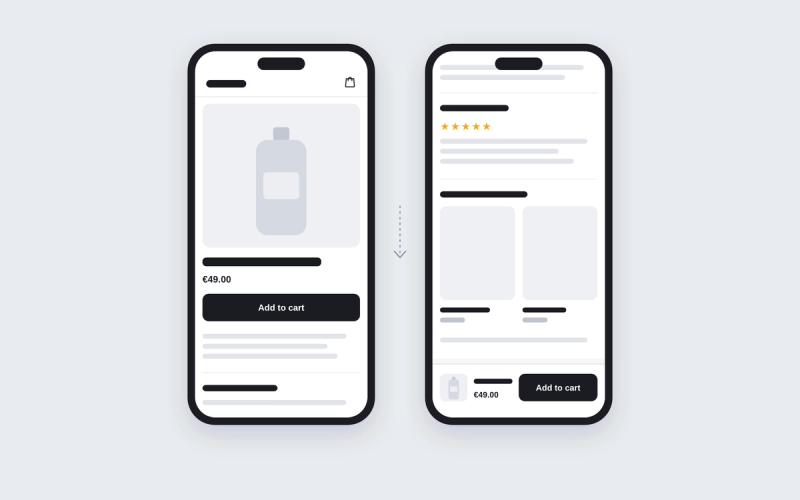
Shopify theme with a sticky add to cart bar
Keep the add-to-cart button on screen while shoppers scroll the product page.
 Saves €7/month
Shopify theme with a countdown timer for sales
A live countdown to the end of a sale, in the announcement bar or anywhere on the page.
 Saves €9/month
Shopify theme with a built-in newsletter popup
Collect email sign-ups with a popup that waits before opening and stays away once dismissed.

Show local pickup availability on Shopify product pages
Tell shoppers which of your locations can have the selected variant ready for pickup.
 Saves €5/month
Shopify theme with a shareable cart link
Let shoppers send their cart as a link that fills someone else’s cart in one click.